
How to Check Your Monthly Enrollment Updates
The simplest way to view enrollment updates is to log into the portal after receiving the remittance email.
You will receive a remittance email the first week of the month, with the subject line “Payment for (Employer Name) - (Month, Year). If you work with multiple employers, you will receive a separate email for each employer. Let us know if you need additional people to receive these remittance emails - we can add them to the list!
The email will show membership fees paid to you for that month, based on that month’s enrollment on the health plan.
To check on last month’s changes in eligibility, follow these steps:
Login at portal.yuzu.health/signin using your email address.
Click on “Payments” on the sidebar. Make sure you are viewing the correct month’s invoice! If you login after you receive the remittance email, this should be the case. If you login earlier, you may need to toggle the month button on the top right.
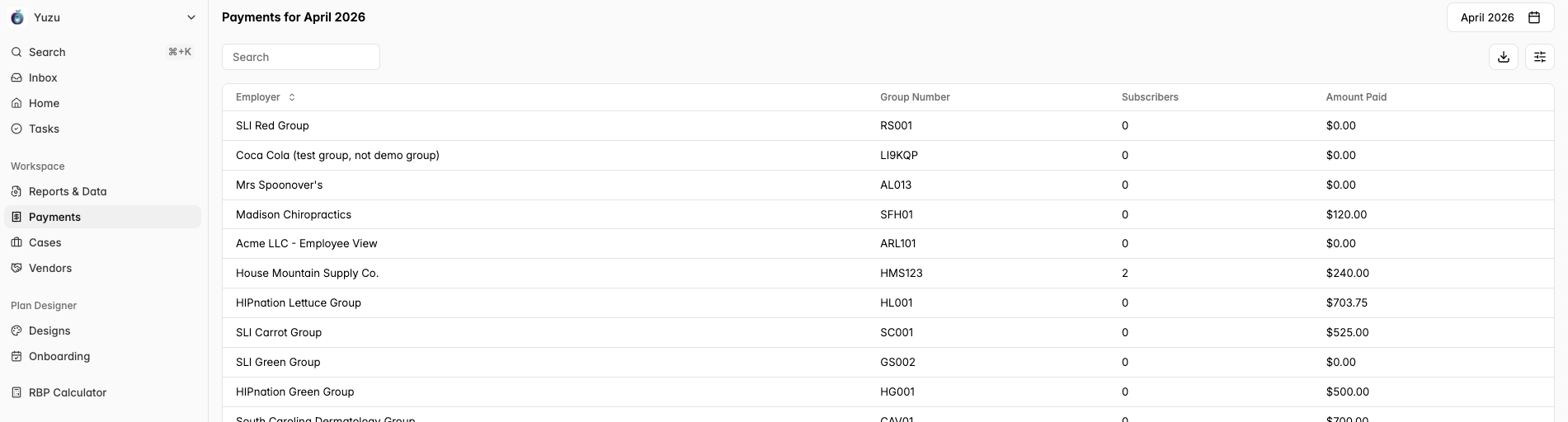
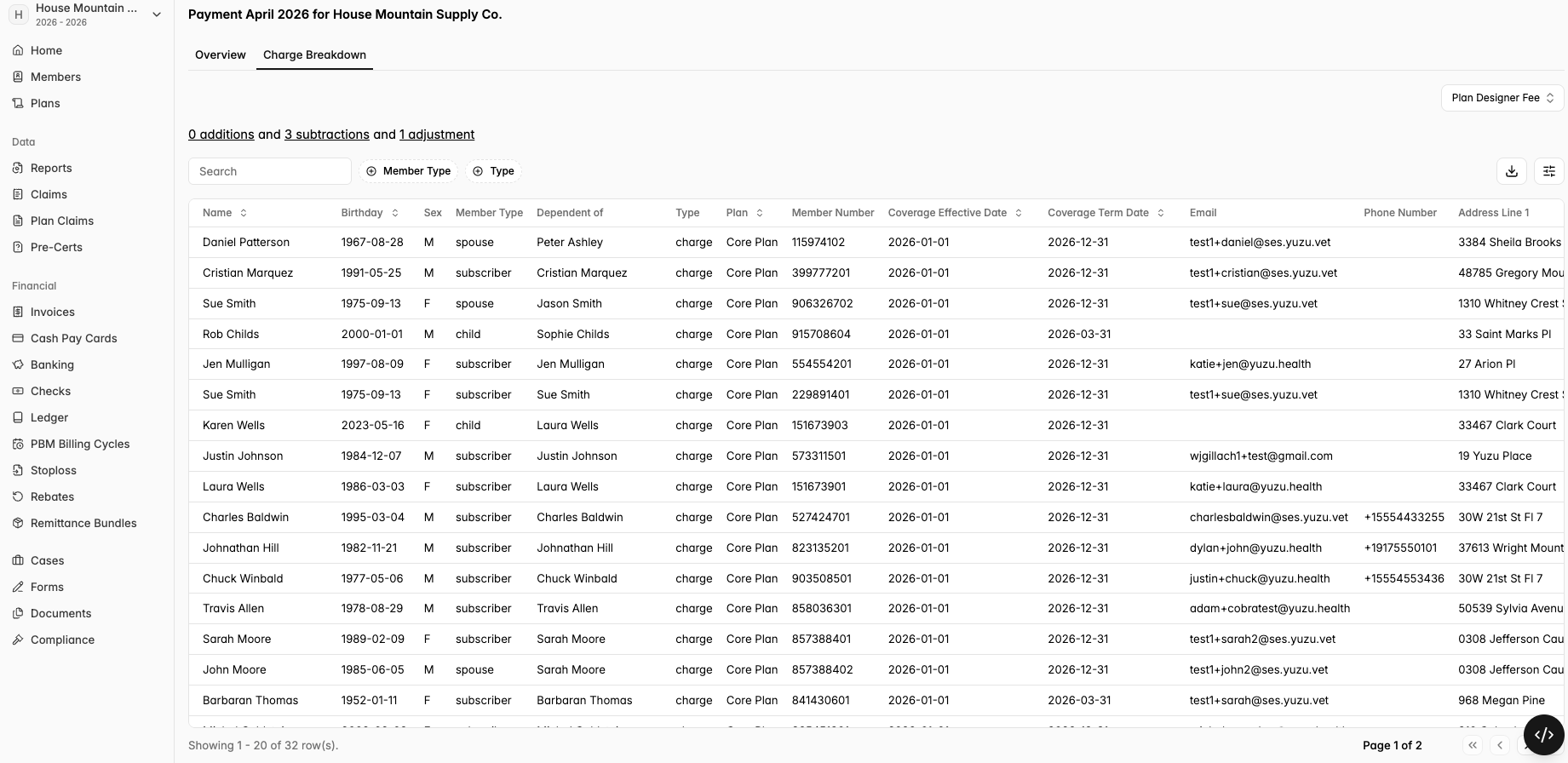
Then select the employer you want to see your payment for. This will show the total amount you were paid that month on the default “Overview” tab. You can then navigate the “Charge Breakdown” tab where you can view the total amount you were paid for on a charge-by-charge basis.
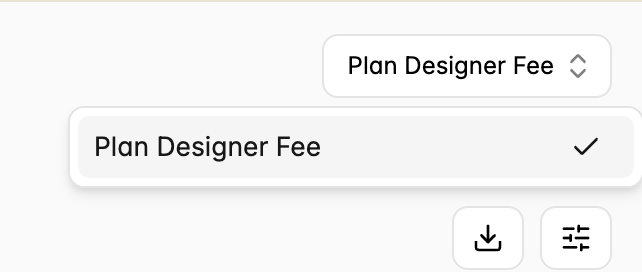
If you have changed your fee within the plan year, you may need to toggle the Fee options button in the top right corner (called “Plan Designer Fee” in this example). If you ever see 0 members on your list unexpectedly, try this first!
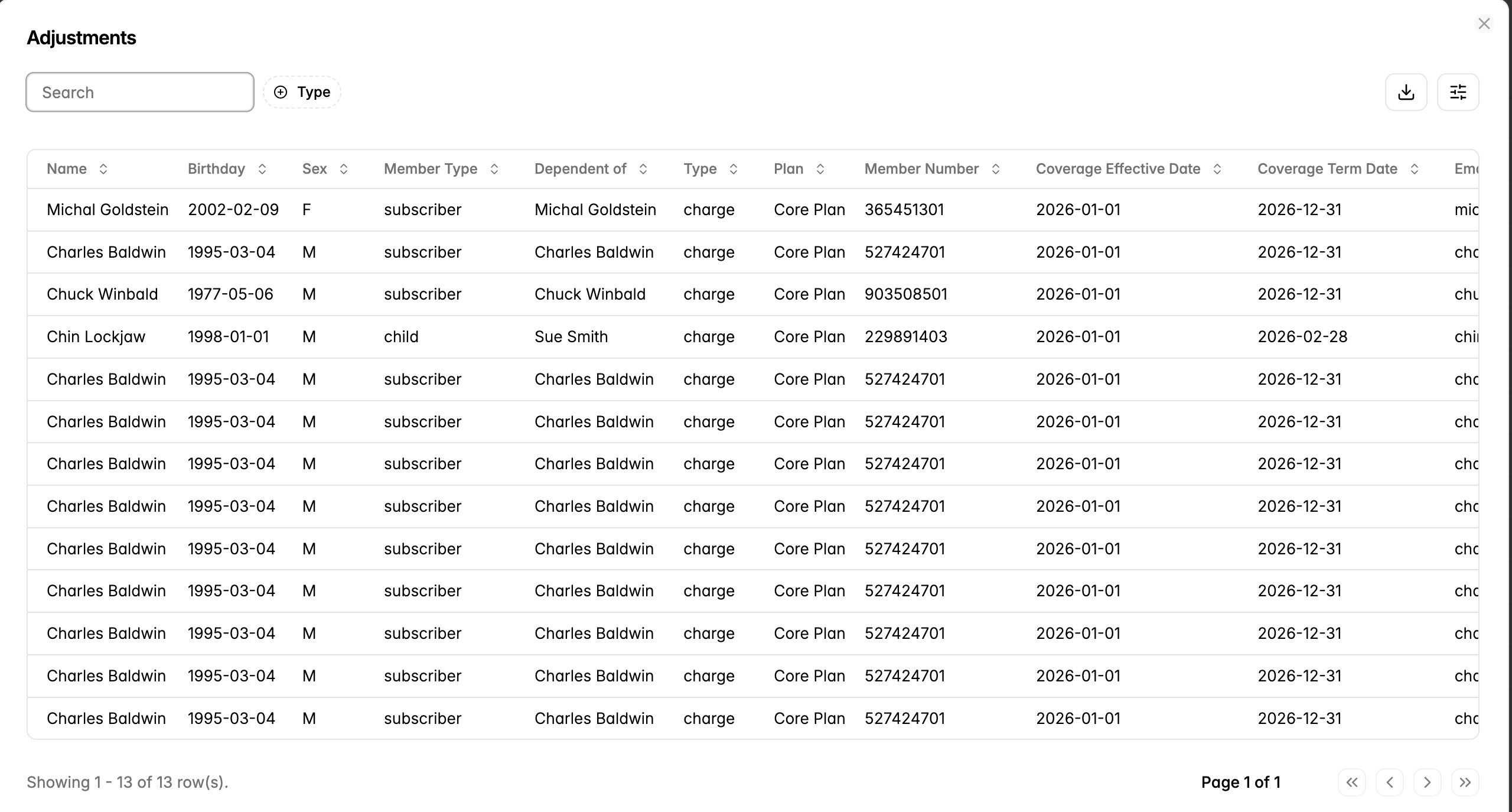
Click the “Adjustments” line in the top middle of the page to see that month’s additions, subtractions, and adjustments. You can download this entire table, which is compatible with Hint, Atlas, and other practice management systems.