

By integrating, you are acknowledging that eligibility maintenance moved upstream to the HRIS. This means all downstream HRIS enrollment errors are now the broker / consultants or the sponsor employee’s responsibility to fix.
For full details related to integrations and setting up an HRIS connection for your group, please go to our dedicated integration resources HERE.
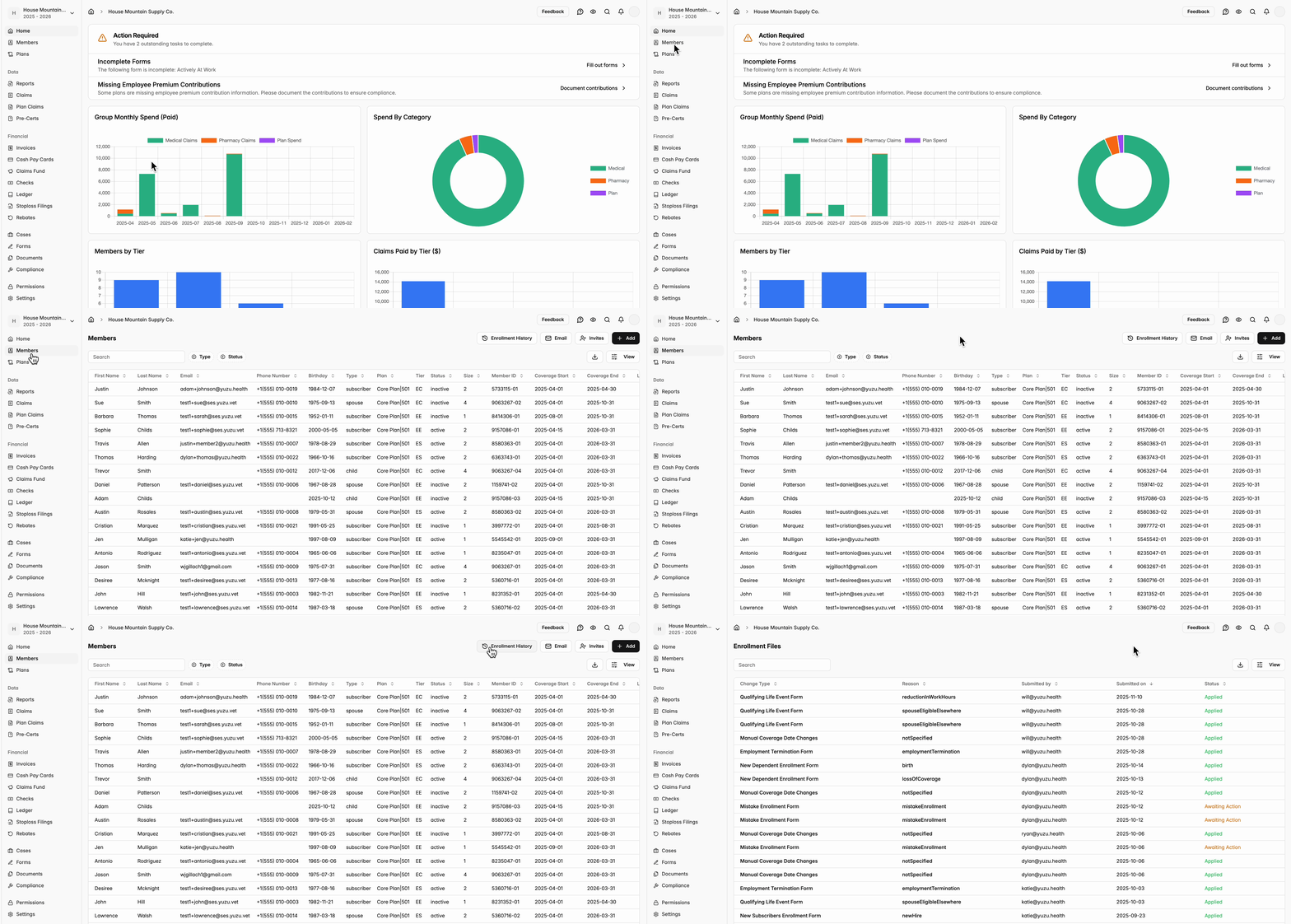
Step 1. Go to the enrollment history
On the groups ‘Members’ tab, click the ‘Enrollment History’ button in the top right corner
Here you can see the date of all enrollment changes, including inbound HRIS files
From this view, you are able to see HRIS files with ingestion failures labeled as ‘Failed’ in the status column
Step 2. Diagnose ingestion failure (error types)
Demographic changes: We highlight ingestion failures primarily through the monitoring of discrepancies between what we currently have in the portal and from the submitted file in five fields:
First Name
Last Name
Sex
SSN
Birthday
We additionally track errors related to:
Absences of demographic information
Date / plan period issues
Member uniqueness (Duplicate phone number, email, SSN)
Missing relationship types (Dependent is missing a Subscriber)
Multiple coverages for same member with overlapping time periods
Note: Regardless of the failure time, we prevent the full file from ingesting, this allows us to maintain a high degree of data integrity while also creating urgency around fixing specific member issues.
Step 3: Fixing ingestion failures
If the most recent HRIS file is failed, that still means the error can likely be fixed by you.
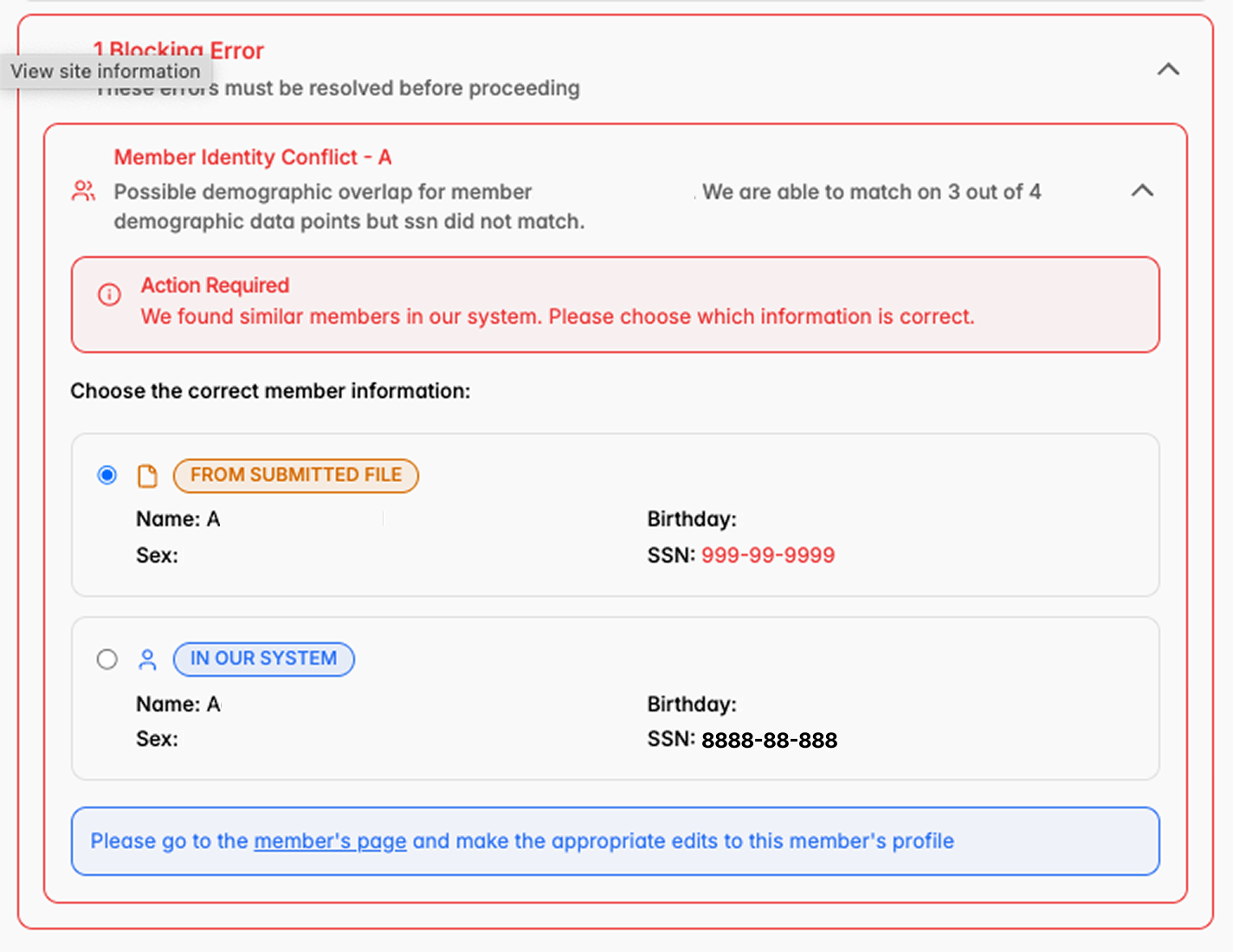
Type 1: Errors that can be fixed in the portal and then resubmitting the file
These are errors where Yuzu is not sure what source of information is correct.
If the PORTAL is correct, then please update your HRIS and resubmit the file
If the SUBMITTED FILE is correct, then please update the portal by going to the members profile and changing the relevant information. From there, you will need to resubmit the HRIS file ad hoc. We are working on the ability for users to resubmit a file directly in the portal.
Errors in this category include
Demographic Changes (Name, Sex, DoB, SSN)
Member uniqueness (Duplicate phone number, email, SSN with another member)
Type 2: Errors that can only be fixed by resubmitting the file
These errors are preventing ingestion into the Yuzu portal and can only be updated in the HRIS and the file to be resubmitted.
Errors in this category include
Absences of demographic information
Date / plan period issues
Missing relationship types (Dependent is missing a Subscriber)
Multiple coverages for same member with overlapping time periods
Note: Reason column
The reason column describes the action taken
“Applied” means the action has been applied whether or not there was a change to the member’s info
“Unknown” means there is not an active coverage for this member. Likely the coverage end date is prior to file submittal
“Annulled” means the member has either been explicitly termed or termed by omission (strongly advised against using term by omission logic)
Step 4: Submit changes
If the changes require submitting a new file, please send a new file over ad hoc from your HRIS file.
If the changes can be made in the portal entirely, an ad hoc file will still need to be triggered to solve. We are working on the ability for users to resubmit a file directly in the portal.
If an ad hoc file is not sent, then in the next week’s file if the changes were properly made, then the file should ingest.
If you have any questions, reach out to HRIS@yuzu.health
Reminder: Turn on notifications of ingestion failures
In the top left corner, click the Icon with your group’s name > click the account settings for your log-in > Notifications > Toggle On ‘Ingestion Failures’, and choose that you want to receive an email for that notification.
Currently, email is the best way to ensure you will be notified if an event occurs as we do not have push notification functionality. More details on notifications HERE