

Process
We are expanding YuzuSign to include contracts beyond the Summary Plan Description. Plan Designers will be able to get four different contracts signed within the portal:
Summary Plan Description (SPD)*
Stop Loss Policy*
Network Contract
Administrative Services Agreement (ASA)
We will be asking Plan Designers to ensure relevant contracts get generated, uploaded, and signed.
We expect SPDs to be generated and assigned by the Plan Designer Implementation Team during onboarding and signed by the group’s go-live date.
We expect Stop Loss Policies to be uploaded and assigned by the Plan Designer Implementation Team once the group goes live and be signed within 30 days of the group’s go-live date.
All other contracts (Network, ASA) are optional, and may be uploaded and signed at the discretion of the Plan Designer.
Group vs. Plan Level Contracts
Group-level contracts live in the “Documents” tab of the portal and include the Stop Loss Policy and ASA. Both contracts prompt PDF uploads.
Plan-level contracts live in the “Plan Documents” tab of the portal under each individual plan (501, 502, 503, etc.) and include the SPD and Network Contract. The SPD is generated in the portal, while the Network Contract prompts a PDF upload.
You can get to plan-level contracts directly from the group-level contract page by clicking the arrow in the top right. Same goes for the other way around.

Assigning Contracts
Follow these steps to assign a contract.
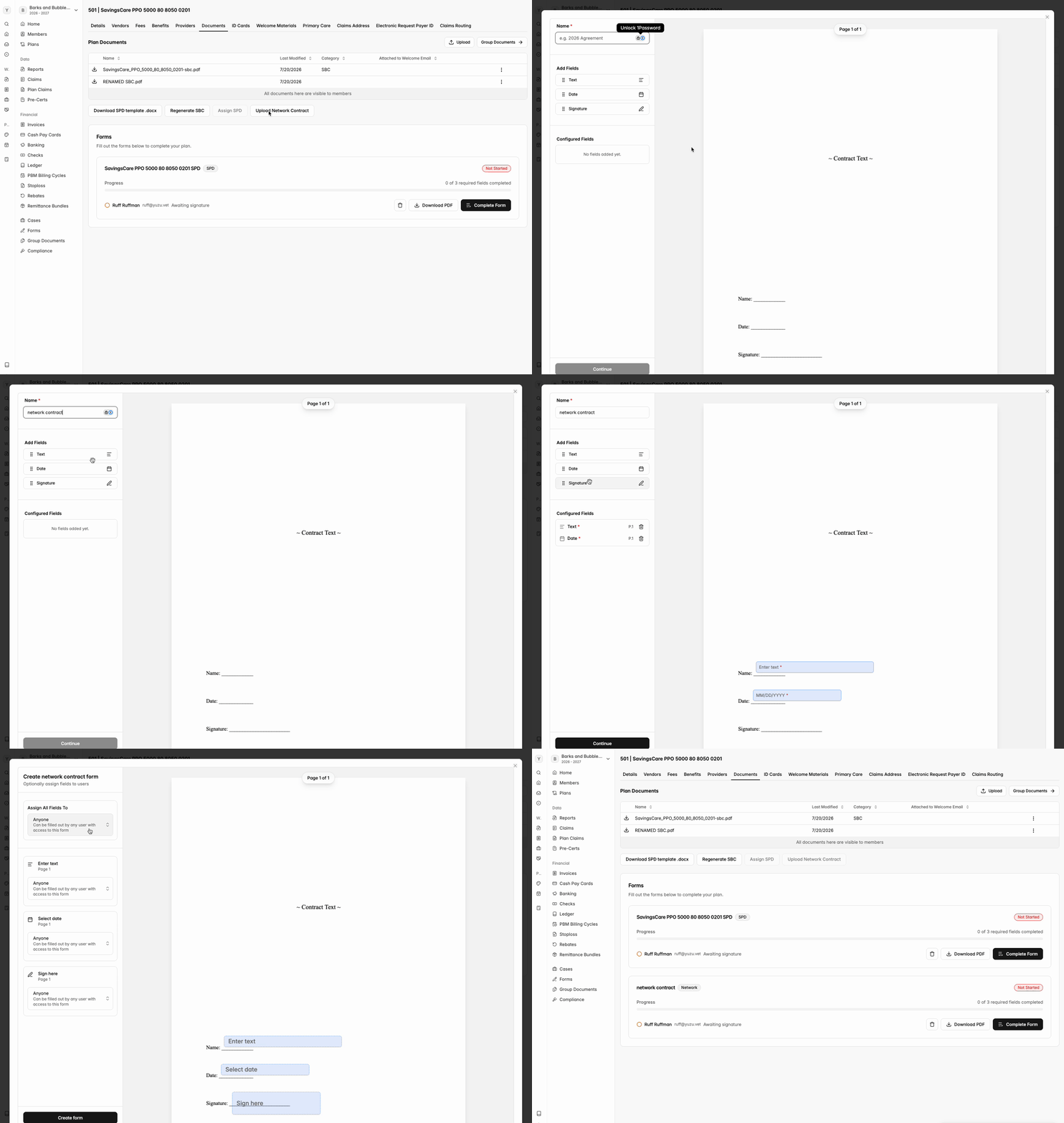
Name the document (if not SPD)
For all PDF uploads, we require the document to be named.
If assigning a templated SPD, generate and assign the SPD by clicking ‘Assign SPD’ on the plan-level contracts page.
Add relevant fields
We allow three field options: Text, Date, and Signature. Drag the necessary fields to their relevant parts of the document. Most documents will need a Signature and Date field at the least. SPDs will require all three.
For SPDs, fields should be assigned on page 3 of the document, in the signature box.
Assign to a signer
After adding relevant fields, you’ll be prompted to assign the document to a signer. In order to be able to assign a signer, the signer must be an admin in the group team. To edit the group team, see this guide. You may assign the same signer for all fields instead of assigning each field individually.
Once assigned, the signer will automatically receive an email prompting them to sign their assigned contract with an accompanying link.