

Yuzu takes an “API-first” approach to vendor integrations. This is preferable for both time savings and functionality improvements. Vendors that take an “API-first” approach receive stronger consideration for inclusion on our “Preferred Vendors” list. Yuzu uses this list to recommend vendors to new blocks of business.
The Yuzu API allows all users to programmatically pull data and manage groups and members. It complements the portal interface for organizations that need automated workflows or third-party integrations. You can use it to pull information into your app, create a group and upload a census, maintain eligibility, and much more.
We believe this documentation and the rise of AI coding tools gives both technical and non-technical users the ability to self-serve their API needs. For tips on how to use the API with limited technical experience go to: I have no technical experience, can I really use an API?
If you spot a gap, please reach out to Adam (adam@yuzu.health), a Product Manager on the Yuzu team. Yuzu’s goal is to have the best API in the industry.
Generate API key
Left sidebar
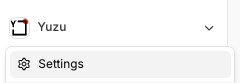
Select the current organization
Select ‘Settings’
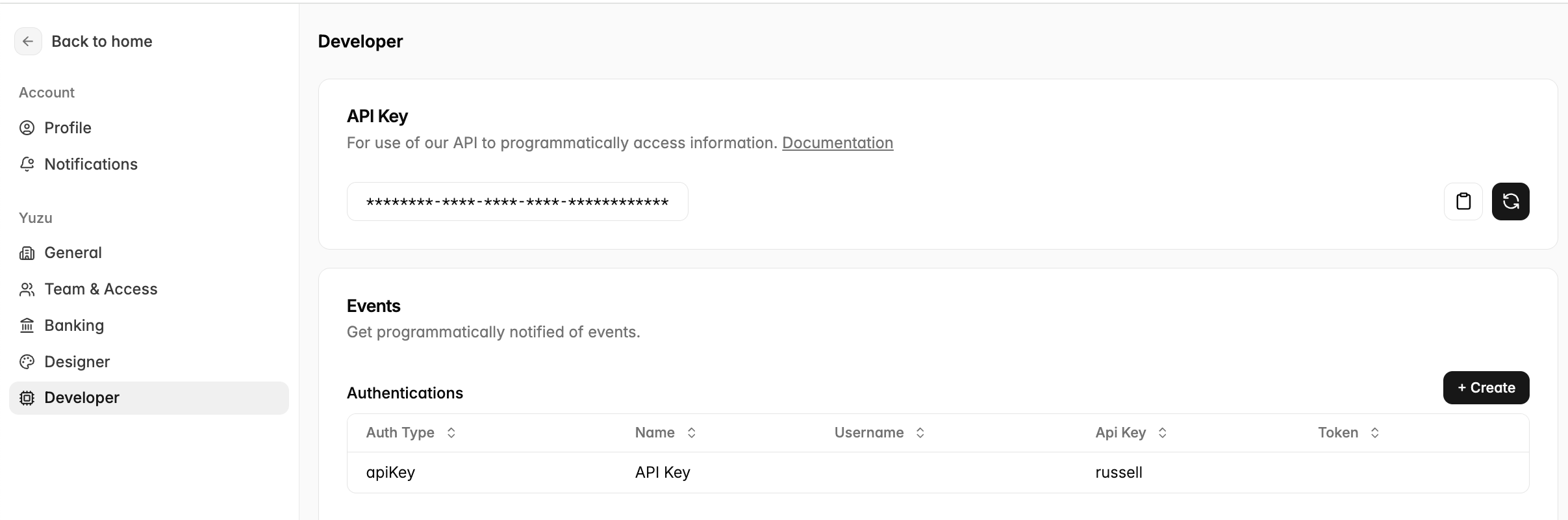
Select ‘Developer’
Generate and copy the API key to get started. The API key is unique at the logged-in user level.
Available endpoints
Production endpoints: https://api.yuzu.health/api/docs#/
Demo and test endpoints: https://backend.yuzu.earth/api/docs
The API documentation site gives the definition of each endpoint.
Platform structure
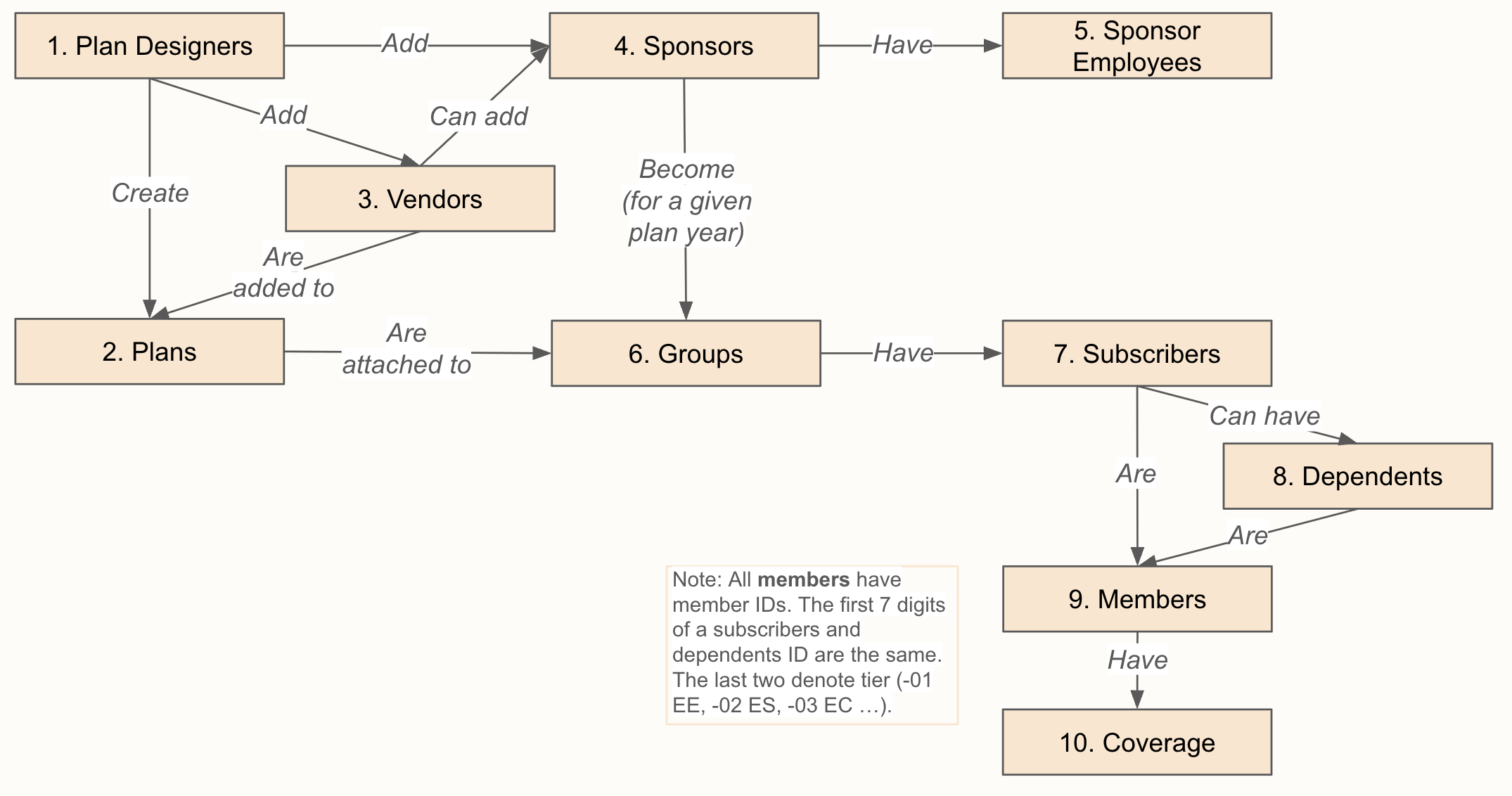
You must know the structure of the platform before you use the API. See "Object details" below for more information.
Plan Designer: The creator of the plan and manager of their relevant vendors. Full portal permissions.
Plan: Templated plan designs built by the Plan Designer. Includes benefit configuration, cards, welcome material, etc. More details on Plan Designs vs. Plans below in object details.
Vendor: Entities associated with a plan that are not the employer (e.g., Broker, PBM, Stop Loss)/ Has access to the organization portal; permissions adjust based on role within a plan.
Sponsor: The employer. Contains info like company details, EIN, address. A sponsor can have multiple groups (e.g., one per plan year).
Sponsor Employee: Authorized sponsor user, with defined roles and admin permissioning (e.g., HR contact). Has access to the organization portal.
Group: Information about a sponsor in a given plan year. (start/end, Group Number, onboarding status).
Subscriber: The employee attached to the group enrolled in a plan. Associated subscriber ID.
Dependent: The spouse or child or the subscriber.
Member: The enrollee in the plan. Contains identifying and demographic information. Has access to member portals. Members can have multiple coverages. Associated member ID.
Coverage: The instance of a member being on the plan (start date, end date, associated claims).
Object details
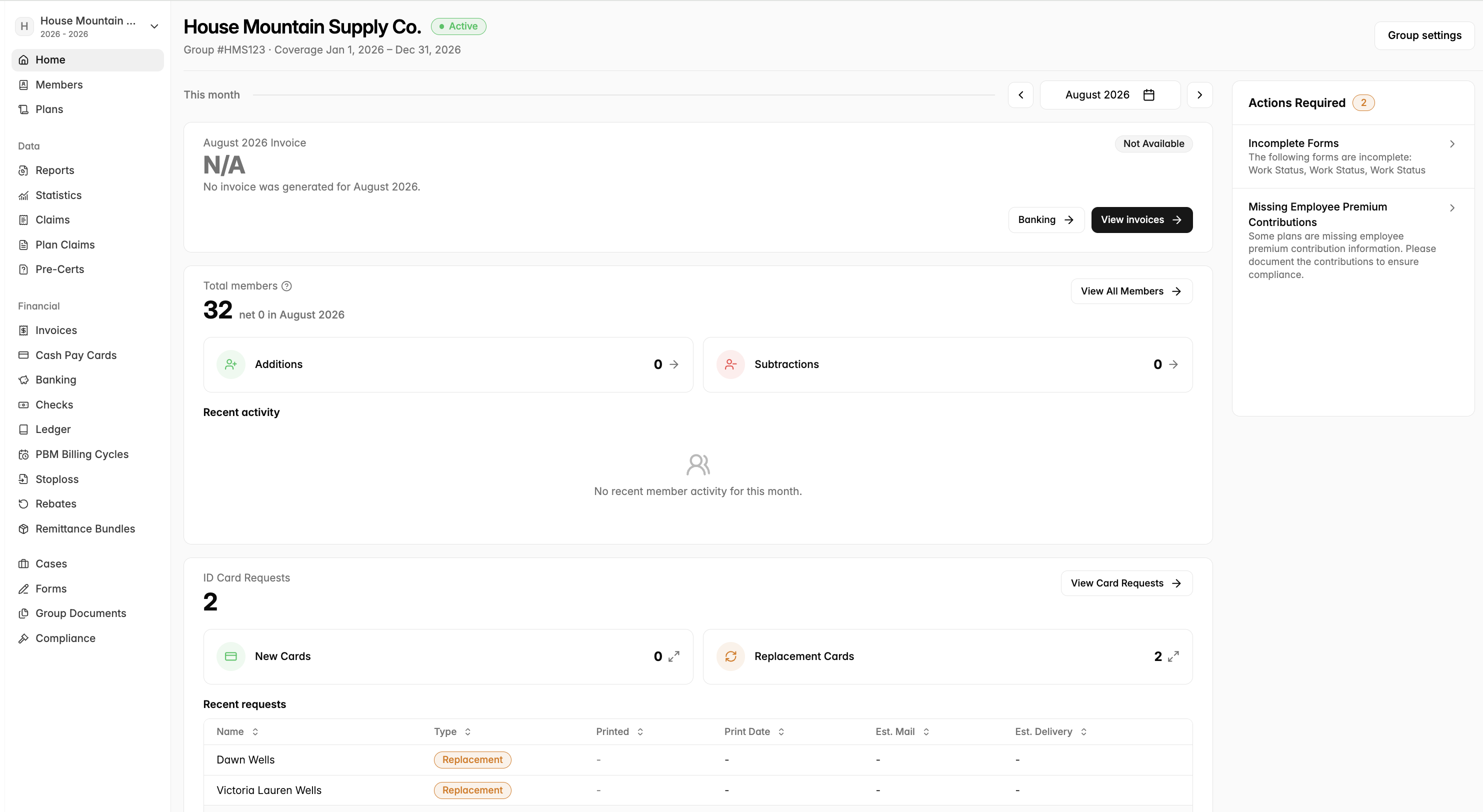
Sponsor vs. Group vs. Plan
Sponsors are durable, the ID will stay the same from year to year. Core information like the EIN is associated with the Sponsor ID.
Groups are for a given plan year. The Group ID will change on renewal. The start and end date of the policy is associated with the Group ID.
Plans are the benefits, accumulators, cost sharing, vendors, cards, welcome materials associated with a single plan. One group can, and frequently will have multiple plans associated with it (e.g., 1500 PPO and 7500 HSA).
Member vs. Coverage
Member IDs are durable and will stay the same. Core demographic information like Name, Date of Birth is associated with the Member ID.
Coverage IDs will change with the new group IDs or be unique if a Member has multiple coverages on different policies. The start and end date of the policy is associated with the Coverage IDs.
Plan Design vs. Plan
You must know this difference if you make groups.
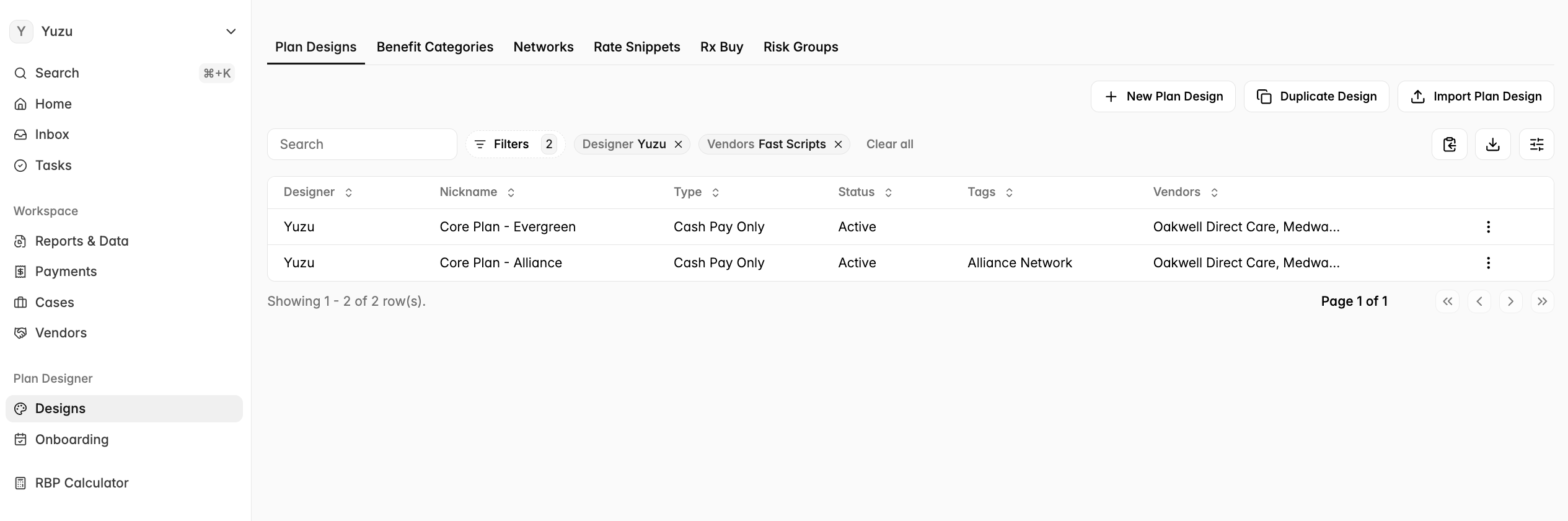
Plan Designs have PlanDesignIDs that do not change. These live on the ‘Designs” tab in the portal. Similar to plans referenced above, these have benefits, accumulators, cost sharing, vendors, cards, welcome materials associated with a single plan. These are created during the “Build” and ideally remain templated and untouched.
When a PlanDesign is attached to a group during Group Onboarding, the benefits, etc. now are associated with that group as a Plan ID. This will be a unique identifier, scoped to that specific group. The “basePlanDesignId” will continue to be associated with this Plan ID for auditability and traceability. Worth noting, the “basePlanDesignId” will remain in the returned pull, even if the Plan’s benefits or any other details change.
FAQs
What is the API versioning and deprecation policy?
Yuzu's public API is versioned by URL prefix (v1, v2), each authenticated via API-key bearer tokens.
There is no codified sunset timeline (no guaranteed notice period) but we do proactively reach out to Partners before all deprecations and can deploy deprecation if reasonable.
Will Yuzu ever remove or rename a field in an existing endpoint?
Our goal is within a version, we only add fields. New functionality is introduced as new (optional) fields or new endpoints.
If we do remove fields, we will provide proactive notice to all of our partners.
What is the pagination limit and can it be overridden?
Pagination is cursor-based, not offset-based. The default page size is PAGINATION_LIMIT = 50, except member-listing endpoints which use MEMBER_PAGINATION_LIMIT = 100
Is there a last_modified field on objects?
No. There is no updatedAt or lastModified field exposed in the public API schema or types. To see changes, pull down data consecutively and compare the diff. An alternative is to use “Webhooks” which are similarly configurable from the developers page to receive data each time an event occurs. Details on Webhooks HERE.
How do I get and pass an API key?
Keys are created in the vendor portal's Developer settings and passed as a bearer token; each key matches to an owning org/employee.
What is the ordering based on?
Results are ordered deterministically by createdAt then id, so the startAfter cursor is an object id.
Is there a sandbox / test environment?
Yes, we allow you to test our API through our yuzu.earth environment.
How do I rotate an API key?
Creating a new key deletes existing keys for that employee (so rotation = create new, old one immediately stops working), and the secret is shown only once.
What does an error response look like?
All errors return a consistent JSON body: { timestamp, path, message }, with the appropriate HTTP status. For 400 BadRequest validation failures, the body additionally includes a Zod errors array detailing which fields failed. More on common pitfalls.
Does Yuzu plan on "publishing" its Yuzu API - Open API Specification (OAS 3.0 JSON or YAML file download link)?
Not currently on the roadmap.
Does this data include all termed and renewed policies?
Yes, if you are added as a vendor to a termed or renewed policy, you will be able to see this data. One thing to note is that as the group renews the groupID changes. The associated planId and coverageId also change. sponsorId and memberId will be consistent across years/policies.
Popular use cases
Create a group and add an initial enrollment
1. Get available plan designs with GET v2/designs
Returns list of planDesignId values with their configurations
Use these IDs to programmatically assign plans when creating groups
2. Create the group with POST v2/groups
Include groupId, adminEmail, sponsorName, and ein
Reference valid planDesignId, benefitBundleId, and vendorId from step 1
Set effectiveDate and terminationDate for the policy period
3. Add members with POST v2/groups/{groupPolicyId}/enroll/initial-enrollment
Provide required fields: memberId, firstName, lastName, dateOfBirth, ssn
Set memberType (e.g., "employee", "dependent")
Include address and contact information
Pull down enrollment and claims data
1. Query enrollments with GET v2/members
Filter by groupId to get all enrollments for a specific group
Use effectiveDate and terminationDate parameters to filter by date range
Include status parameter to filter by enrollment status (active, terminated, pending)
2. Retrieve claims with GET v1/claims/medical
Filter by groupId or memberId as needed
Use serviceDate range parameters to get claims within a specific period
Claims include claimStatus, claimAmount, and processing details
3. Export data in bulk
Use pagination parameters (page, limit) for large datasets
Results are returned with totalCount for tracking progress
Consider filtering by lastModifiedDate to pull only updated records
Maintain eligibility
1. Pull down relevant planIds with GET /v2/groups
Returns a paginated list of groups
Each group carries a plans array, and planId is the id on each plan object
Add subscribers and their dependents with POST /v3/groups/{groupPolicyId}/enroll/add-subscriber
Provide a subscribers array; each subscriber sets plan (the plan id from Step 1), self, optional spouse/children, and tags
Note: if a member changes plans, Yuzu must be notified - we currently only support plan changes initiated by Yuzu
Verify the enrollment request succeeded, Poll GET /v1/enrollmentRequests/{enrollmentRequestId}
If it fails, we give you portal access to see exactly what happened.
Pull down the new member and coverage UUID via GET /v2/members
Today you'd list all member (optionally filtered by planId) and match demographics against your system to map the UUID.
Additional functionality:
Add a dependent to an existing subscriber → POST /v3/groups/{groupPolicyId}/enroll/{subscriberCoverageId}/add-dependent
Terminate coverage → POST /v3/groups/{groupPolicyId}/enroll/terminate
Update demographic information → PATCH /v2/members/{memberId}
Common pitfalls
Unique constraints cause 400 errors. These fields must be unique across the system:
adminEmail: each group needs a distinct admin email
groupId (group number): cannot reuse across groups
ein + date range combination: a sponsor cannot have overlapping policies with the same EIN and dates
Required IDs must be valid. When creating a group, you must reference existing:
planDesignId: the plan template to use
benefitBundleId: the benefit bundle for the plan
vendorId: the broker or vendor associated with the plan
Invalid IDs return a 400: These IDs are available in the portal or from your Plan Designer:
500 errors are usually data issues. If you receive a 500 error, double-check your request
Payload against the required format. Common causes include missing nested fields or malformed data structures.
I have no technical experience, can I really use an API?
Yes! With the rise of apps like Postman, Claude Code, and Codex it is easy and intuitive to pull down information via an API. We encourage all partners to attempt to use an API prior to a data exchange feed which are more timely to set up, and require dated SFTP technology.
To do this you will be using a GET command and pull down items like claims and eligibility. For basics, Postman has a good article: What is an API?
However, please leave POST, PATCH, and DELETE endpoints for more technical developers as these have a direct impact on the objects within the portal.
Typical steps are as follows:
Pull down a developer key from either the Demo or Prod environment
Test if the data you want is returning directly from our API documentation sites for Demo or Prod Environment.
If you are not able to pull down the information that you believe you should be able to (e.g., 403 Forbidden), your org likely needs to have permissions adjusted. Reach out to partners@yuzu.health with “API Permissions Issues” as the subject.
Once tested, begin testing pulling down the information in your own environment. Here, you can use AI tools to describe what you are trying to do (e.g., pull claims data monthly) and it can help from there. It is important to save down this context into a .md file so it can be referenced later.
Tip: If you want to kickstart the context for the coding tool, you can copy and paste the text from this doc into the context window as well as link directly to the API documentation site.
One last thing, it is highly recommended to keep the Yuzu portal open while testing. If you are receiving an empty set on a pull, there is a good chance there is no data to begin with. If you are unable to POST an object, there is a good chance you do not have permissions to view in the portal. When troubleshooting the API with Yuzu, the first question we will always ask is what does it look like on the portal.