

Care Events Overview
Care Events are a member-level configuration tool that lets you apply targeted rules to how a member's claims are handled during adjudication.
Specifically, Care Events allow you to:
Pend claims for a member, optionally scoped to a service date range and/or a specific billing provider
Set a network tier for a member, also optionally scoped to a service date range and/or billing provider
Reprice claims for a specific provider at a set rate (for example, a Letter of Agreement, or LOA)
Set a benefit for a member, granting or overriding a benefit for a specific category
Deny claims automatically, using a claim remark code
Once created, Care Events surface automatically in the adjudication workspace and the call center, and are archived instead of deleted when finished.
Care Events vs. Cases
If you've used Cases to manage member-level claim handling in the past, Care Events will feel familiar in purpose but different in approach.
Cases are a general-purpose communication and case management tool — they're designed to keep conversations, documents, and claim attachments organized within the Yuzu portal. In the past, Plan Designers have used the Stop Claims Processing Flag to halt claims processing for members with special circumstances (e.g., subrogation, complex medical needs, etc.). But we saw a need among our customers for a more fine-tuned solution, so we created Care Events.
Care Events are purpose-built for claim handling logic specifically. Rather than pausing adjudication of all claims for a member, they apply precise, scoped rules to halt only the claims you need. You can target a specific date range, a specific provider, or both.
This makes them significantly more granular than Cases for adjudication-related workflows, and over time, Care Events will become the primary way to pend claims, manage tier assignments, and apply claim-specific pricing and benefit overrides.
Category | Cases | Care Events |
|---|---|---|
Primary purpose | Communication & case management | Claim handling configuration |
Pend claims | No (if needed, set a Care Event and tag to a Case) | Yes (scoped by date range and/or provider) |
Set network tier | No | Yes |
Reprice claims | No | Yes |
Set benefit | No | Yes |
Deny claims | No | Yes |
Scope | Member-level, all claims | Member-level, with optional filters |
Visible in adjudication workspace | Yes | Yes |
When to Use Care Events
Care Events are the right tool when you need to apply specific claim handling logic to a member and when that logic is bounded in some way (by provider, by date, or both).
Use Care Events to pend claims when:
A member has an ongoing issue that requires claims review before payment, but you don’t need to freeze all adjudication indefinitely
You want to catch claims from a specific provider or within a specific service date window before they process automatically
An arrangement needs an adjudicator’s judgment on each claim, and you want your instructions in the notes to appear in the Care Event banner
Claims should be held while documentation catches up (for example, a prior authorization, medical records, or an appeal is pending)
You know a provider’s name but not their NPI or TIN. Pend Claims is the only action that can match on name alone.
Use Care Events to set a tier when:
A provider needs to be considered in-network (or at a specific tier) for a particular member — for example, when a member has established care with an out-of-network provider under special circumstances
A member needs care that no in-network provider offers, or needs continuity of care with a provider
A provider joins or leaves the network mid-year and you need to bridge claims to the intended tier for a date range
Claims under an LOA should adjudicate under a specific tier, such as SFH Preferred. A Set Tier event is what applies the tier automatically.
Use Care Events to reprice claims when:
A provider has agreed to a specific rate for a member, such as a Letter of Agreement (LOA) for a transplant, surgery, or other single-case arrangement
A non-par provider has a negotiated rate that doesn’t rise to a full network contract
You need the adjudicator to see the agreed rate and LOA details in the Care Event banner
Use Care Events to set a benefit when:
A member should receive a benefit for a defined period (for example, a post-surgical rehab window) without changing the plan or its benefit bundle
A one-off exception, such as a different payment level or visit limit, applies to one benefit category for one member, and the plan’s other benefits should stay as they are
It’s a member-level arrangement. Set Benefit can’t be limited to a provider.
Use Care Events to deny claims when:
The outcome is already known and should be automatic, rather than needing an adjudicator’s judgment (use Pend Claims when judgment is needed)
Claims for a provider (NPI or TIN required) or a date range should deny under a specific remark code, so the denial reason is accurate on the EOB and in any appeal
How to Use Care Events
Creating a Care Event
Navigate to the member’s profile in the Yuzu portal.
Open the Care Events tab.
Select New Care Event and choose the event type: Pend Claims, Set Tier, Reprice Claims, Set Benefit, or Deny Claims.
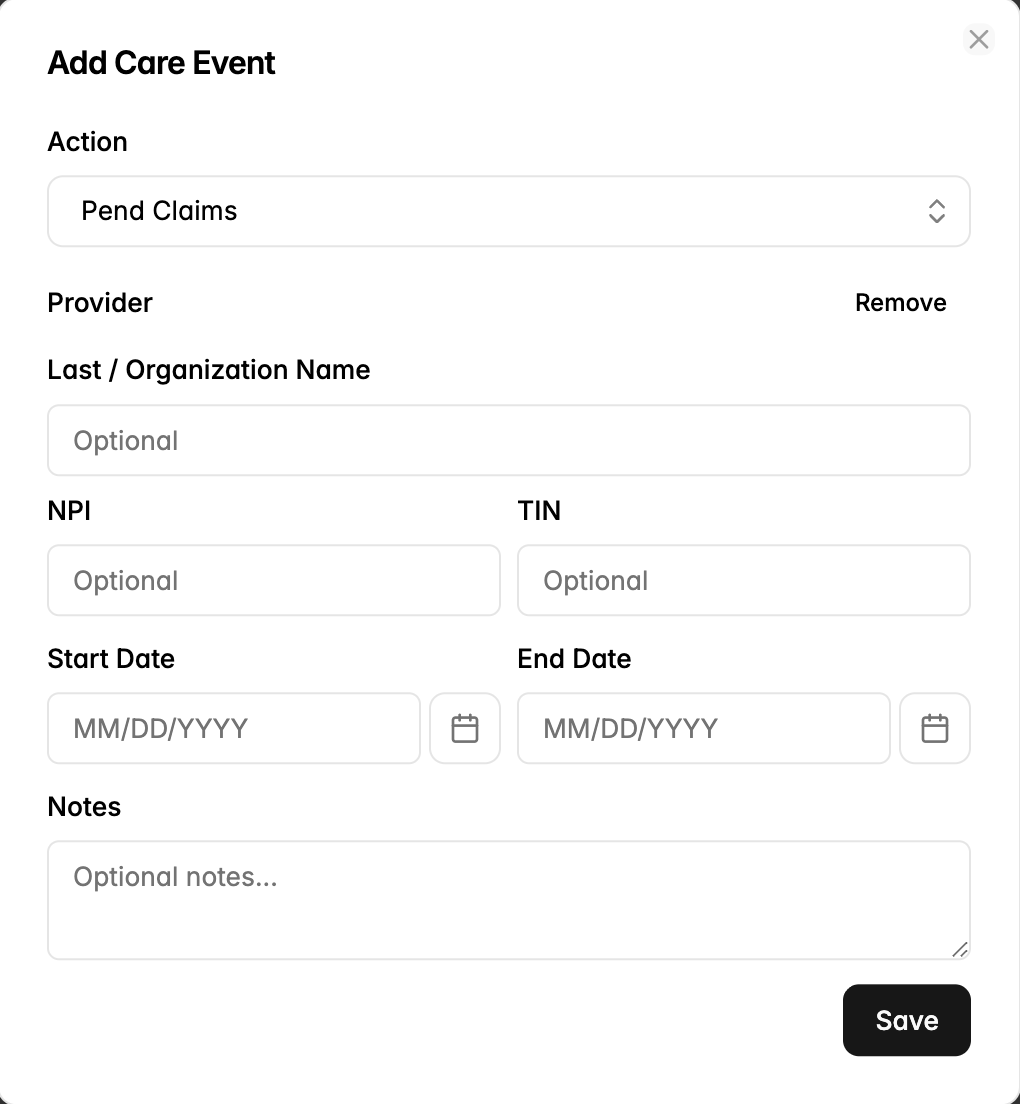
To Pend Claims:
Remark code (optional): Select a remark code from the list. It appears in the adjudicator’s Care Event banner but doesn’t change how the claim is handled.
Billing provider (optional): Restrict the Care Event to claims from a specific provider name, TIN, and/or NPI
Start Date / End Date: Restrict the Care Event to claims with service dates within this window
Notes (optional): Add optional notes to provide context on the Care Event. We highly encourage adding detailed notes to each care event.
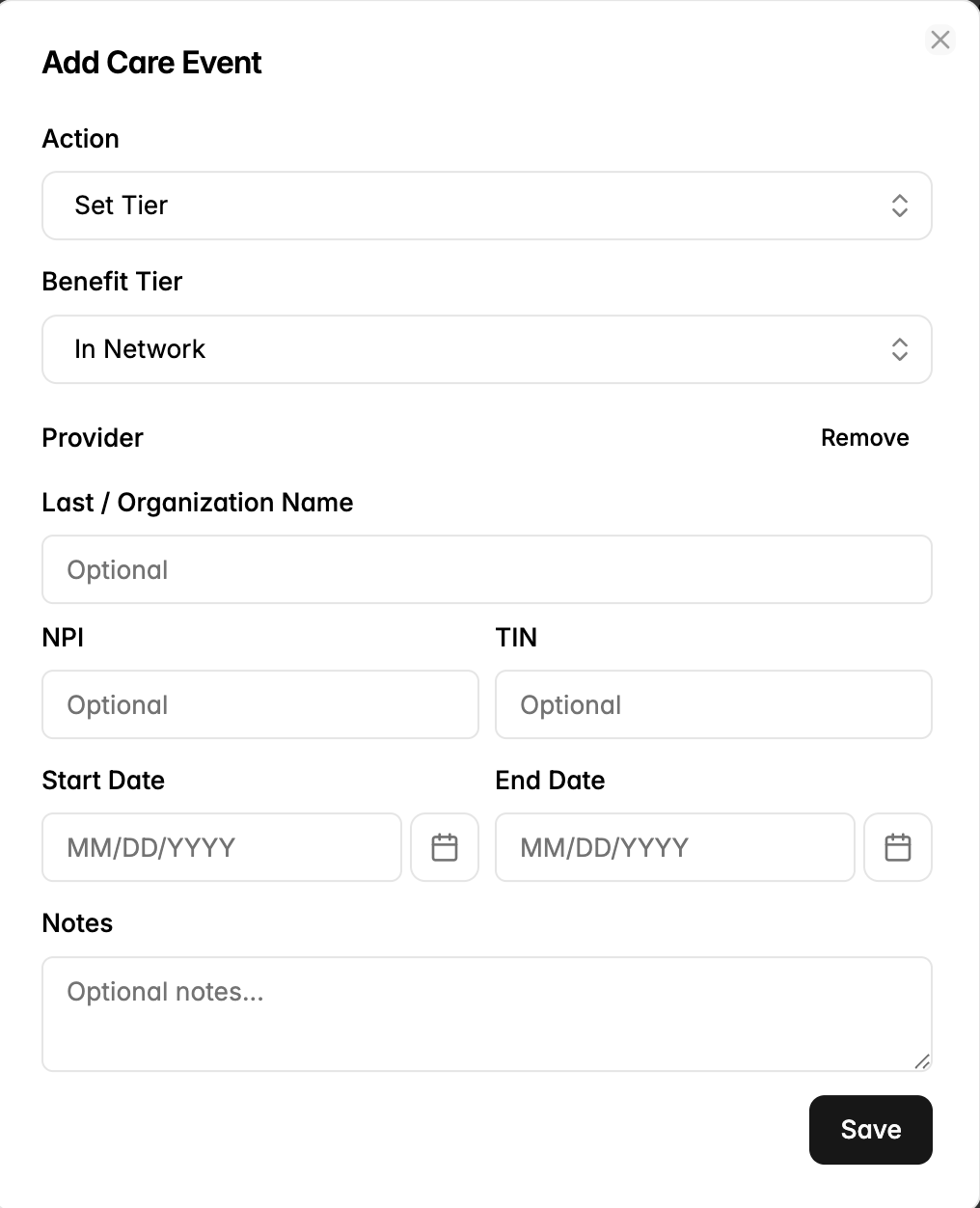
To Set Tier:
Benefit Tier: Choose the benefit tier the claim should be processed under (typically moving from out-of-network to in-network). The tier must belong to a benefit tier on the member’s plan.
Remark code (optional): Appears in the adjudicator’s banner only
Billing provider (optional): Restrict the Care Event to claims from a specific provider. Include an NPI or TIN, since a name alone won’t match for Set Tier.
Start Date / End Date: Restrict the Care Event to claims with service dates within this window
Notes: Add notes to provide context on the Care Event. We highly encourage adding detailed notes to each care event.
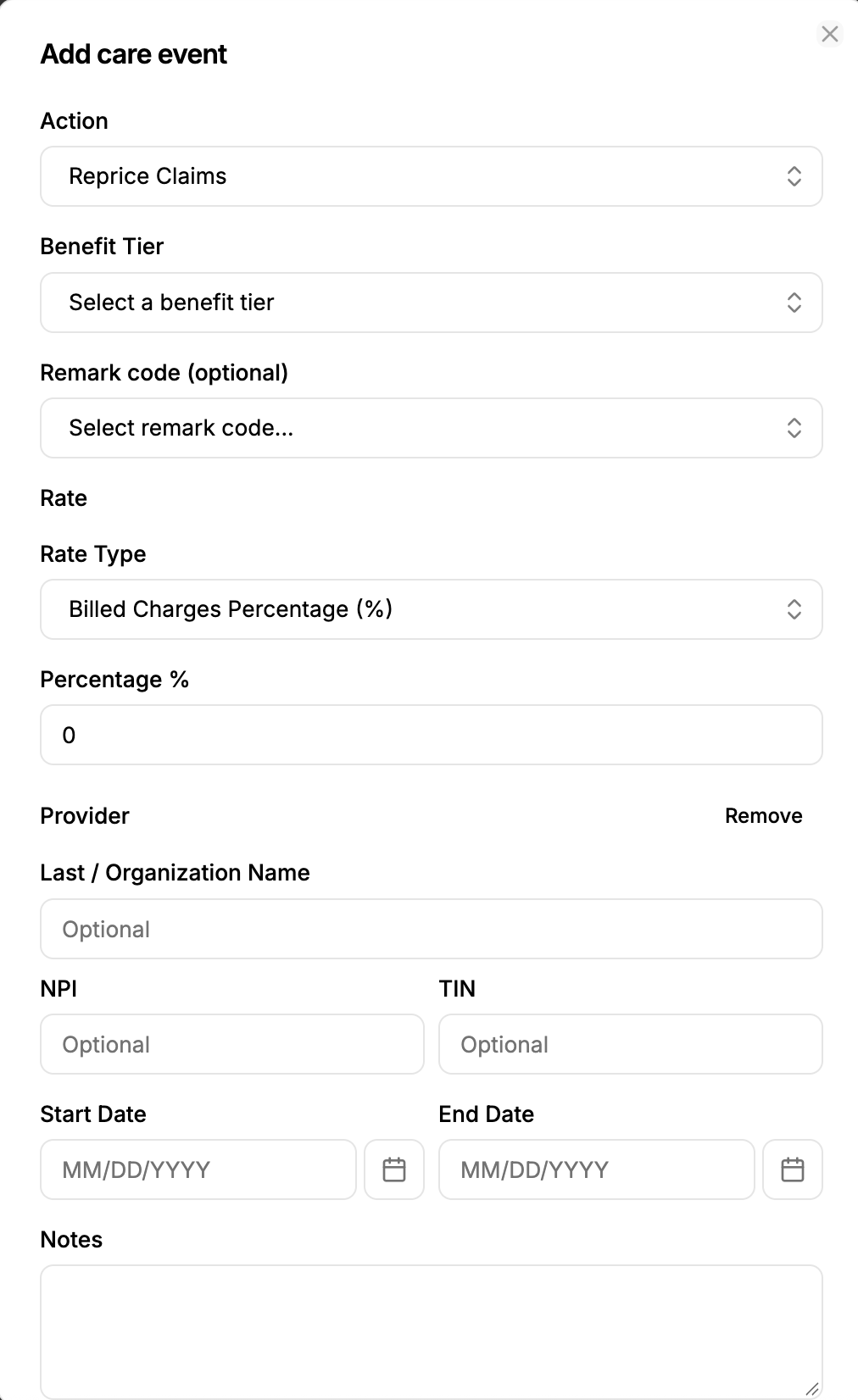
To Reprice Claims:
Rate Type: Choose how the claim should be priced, whether as a percentage of billed charges or as a percentage of Medicare charges.
Percentage %: Enter the rate. The field starts at 0, so update it before saving.
Billing provider: Required. Enter an NPI or TIN, since repricing works per provider, like a contract.
Benefit Tier (optional): See the note below. This does not change the claim’s tier and is display-only.
Remark code (optional): Appears in the adjudicator’s banner only
Start Date / End Date: Restrict the Care Event to claims with service dates within this window
Notes: Add the LOA or contract details.
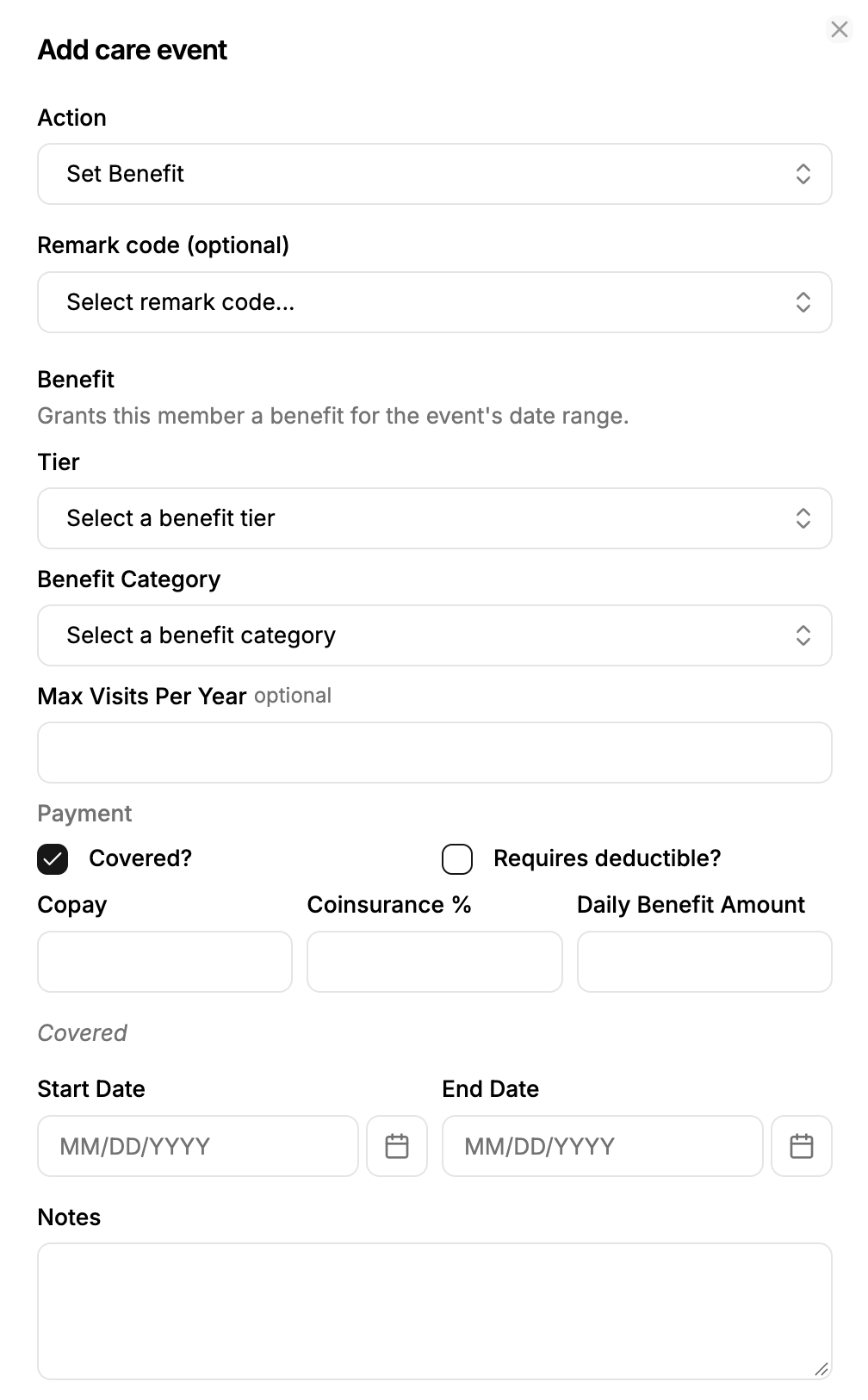
To Set Benefit: This action grants the member a benefit for the event’s date range. It can’t be limited to a provider.
Tier: Choose the benefit tier for the benefit
Benefit Category: Choose the category the benefit applies to
Max Visits Per Year (optional): Set a visit limit for this benefit
Payment: Set how the benefit pays. Whether it is covered or requires deductible, as well as what the Copay, Coinsurance %, and/or Daily Benefit Amount should be.
Remark code (optional): Appears in the adjudicator’s banner only
Start Date / End Date: The date range the benefit applies to
Notes: Add notes to provide context on the Care Event.
To Deny Claims:
Remark Code: Required. Choose the remark code the claim should be denied under.
Billing provider (optional): Restrict the Care Event to claims from a specific provider. If denying by provider, an NPI or TIN is required.
Start Date / End Date: Restrict the Care Event to claims with service dates within this window
Notes: Add notes to provide context on the Care Event. Please also add your name and date you created the care event.
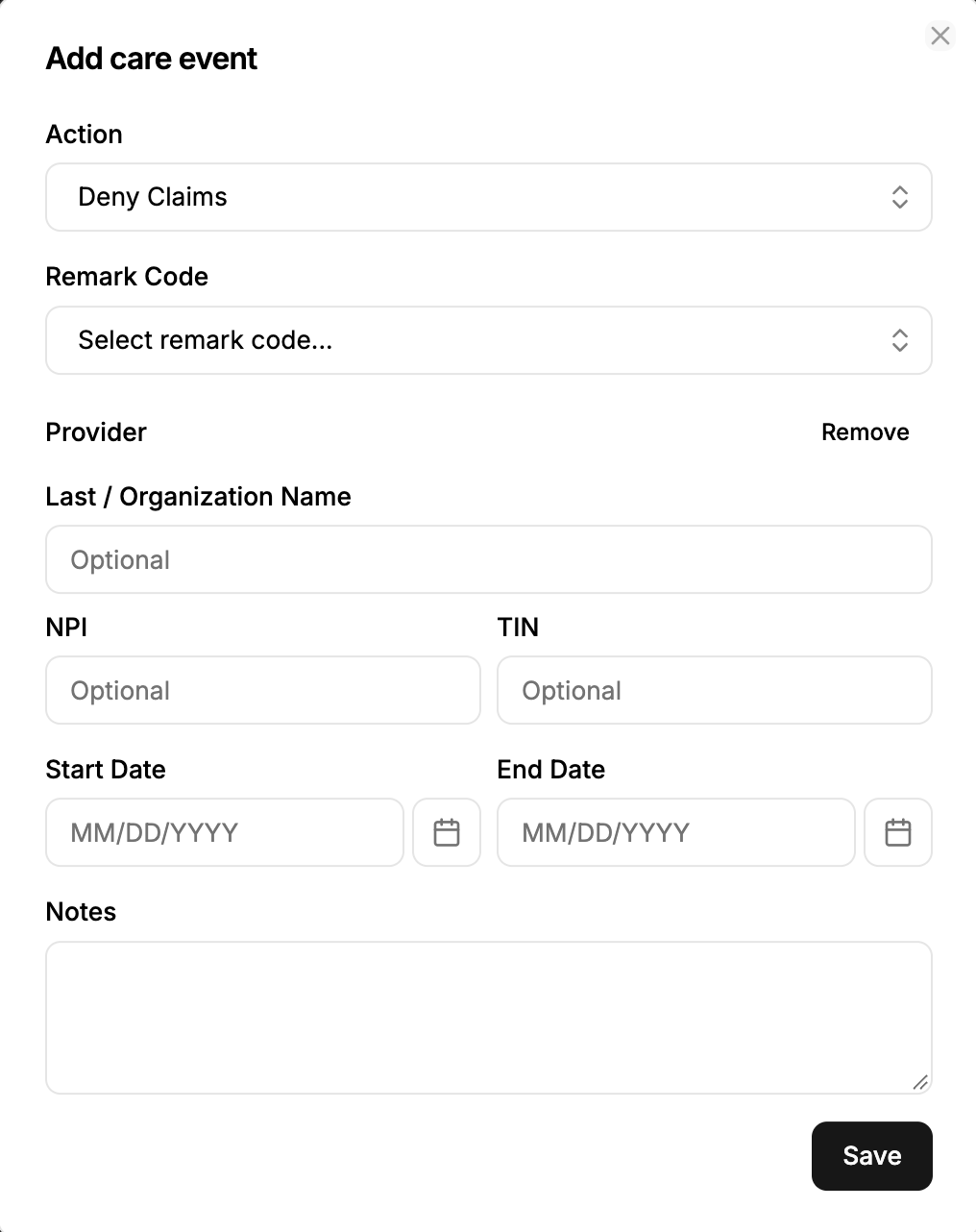
Save the Care Event. It will become active immediately.
When Care Events take effect
Not retroactive. Creating a Care Event doesn’t re-run adjudication. Claims that are already approved keep their existing tier and pricing. To fix them, adjust or re-adjudicate each claim manually.
Claims still in processing pick up the Care Event the next time they are adjudicated.
Matching claims go to a human. Any active Care Event overlapping a claim’s service dates, of any action type, blocks auto-approval and shows the adjudicator the Care Event banner. This means a Set Tier or Reprice Claims event already sends matching claims to review, so you don’t need a separate Pend Claims event alongside them.
LOAs usually need more than one event. If an LOA needs both a negotiated rate and a specific tier, create a Reprice Claims event and a Set Tier event with the same provider and dates.
Editing a Care Event
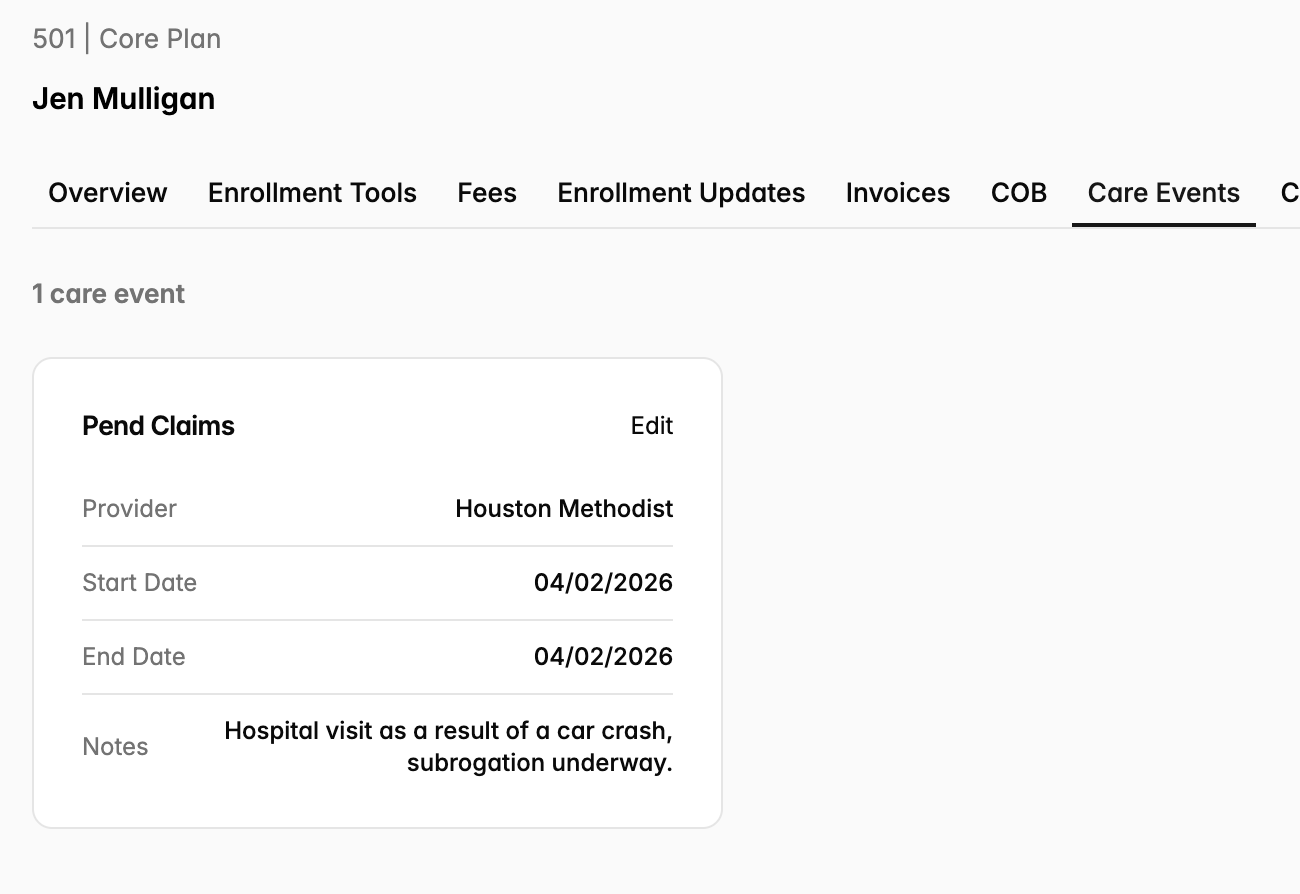
To edit a care event, simply click on the “Edit” button in the top-right corner of the care event box. Care Events aren’t changed in place. Saving an edit archives the original and creates a replacement, so the history is preserved.
Archiving a Care Event
To archive a care event, click on the “Edit” button in the top right corner of the care event box. Then, click “Archive.” Archived events no longer apply to new adjudications, and this will add the Care Event to our internal repository.