Elect Into Pend Enrollments
Some enrollment requests need a second look before they go live - for example, changes made in a group's first month, or terminations and additions backdated by more than 60 days. When a request like this is submitted, it is held as Pending Approval and sent to an approver instead of applying automatically. Once approved, it applies on its own; if rejected, nothing changes.
Which requests are held is set by rules agreed with your Yuzu account manager. If you would like a rule for your groups (for example, "review every plan change" or "send backdated terminations to our stop-loss partner"), reach out to your AM.
Turning on first-month review
If you want every enrollment request in a group's first month held for approval:
Open the group → Settings → Enrollment.
Turn on Require New Enrollment Approval In First Month (group admins and plan designers can do this).
Optional: in your Account Settings → Notifications, turn on Get notified when a new enrollment request is submitted so you get an email when something comes in.
Turn the switch off once your census is settled. Other review rules (backdated changes, HRIS files during setup, plan-designer-specific rules) are set up by Yuzu — ask your account manager.
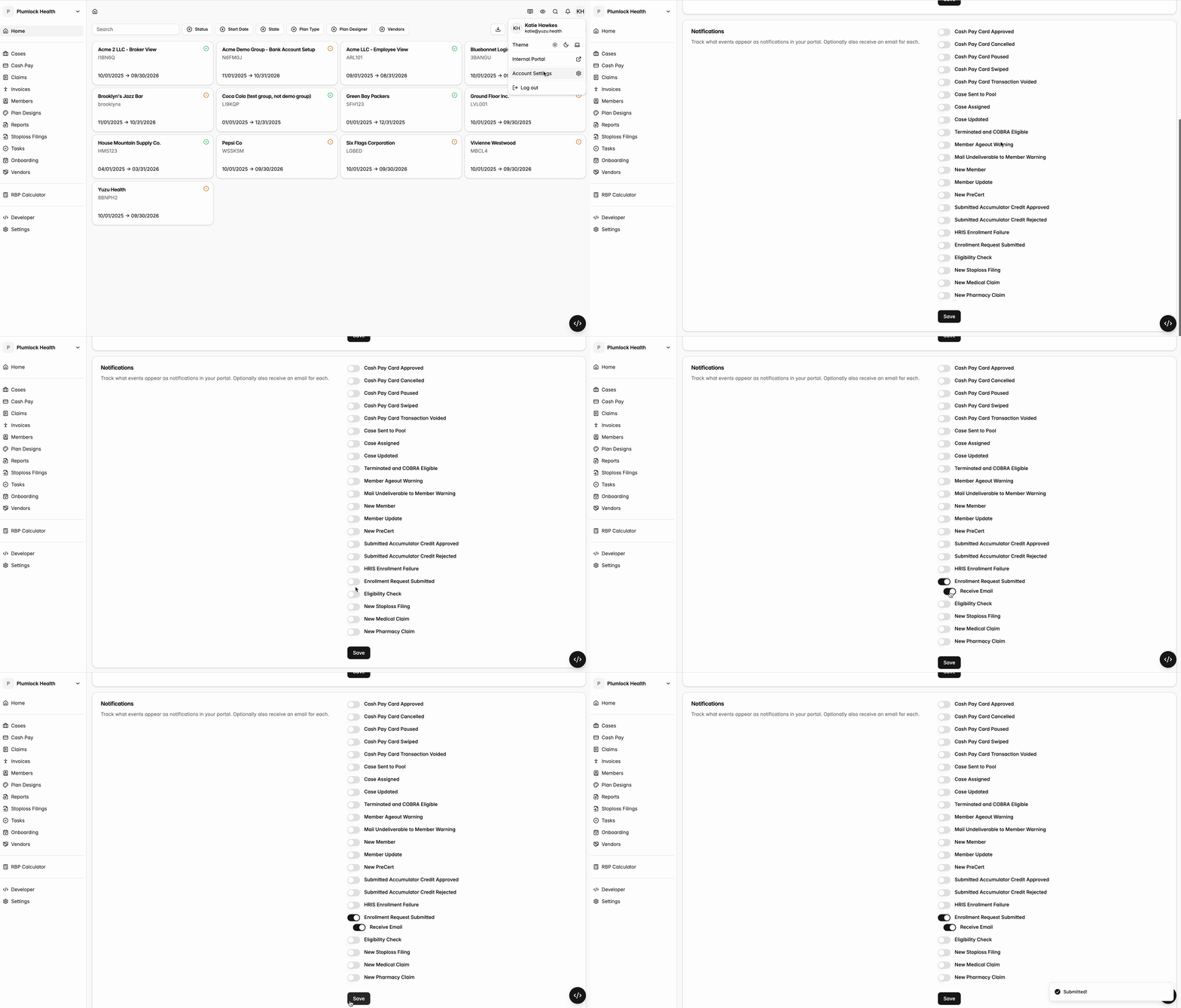
The email will let you know that a new enrollment request has been submitted, and have a large central “Get Details” button which will take you to the approval page.
Where to find it
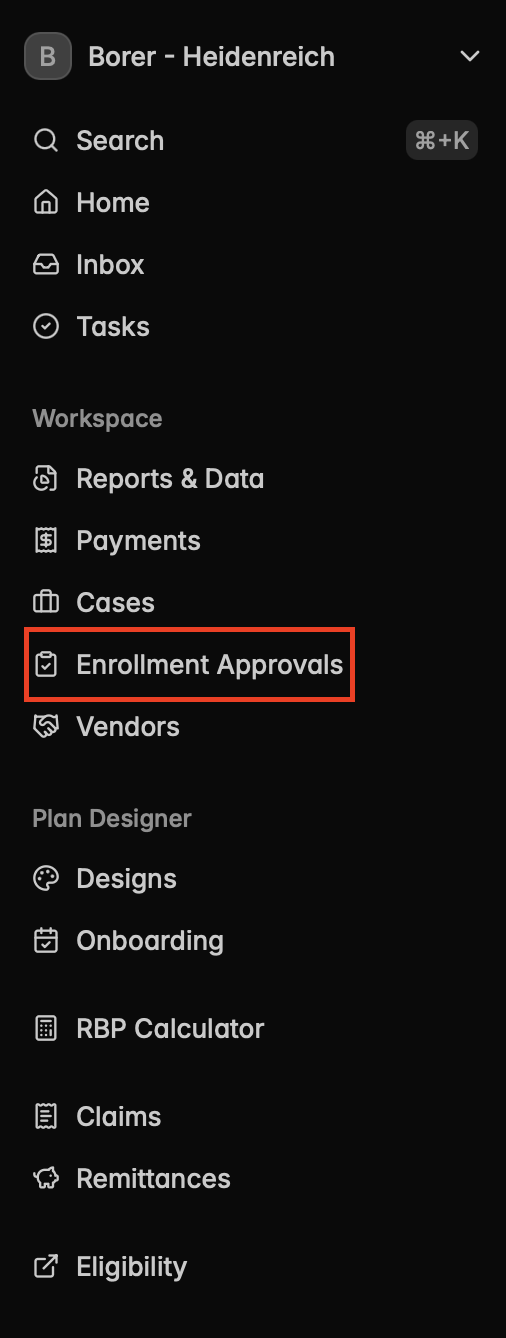
Click Enrollment Approvals in the left menu. You will only see this item if your team has the Can approve enrollment request permission on at least one group. Ask your account admin to add it under the group's Settings → Permissions if you need it.
Reviewing Requests
The To approve tab lists every request waiting on you: group, form type, when it was submitted, who submitted it, and why it was held (the "Pend reason").

Click the group name to open the request and review the member details.
Back on the list, click the ⋮ menu at the end of the row.
Choose Approve to let the request apply, or Reject to stop it.
Approved requests apply right away and disappear from your list. Rejected requests stay in the submitter's list marked Rejected so they can fix and resubmit. You cannot approve or reject a request you submitted yourself.
Tracking your own requests
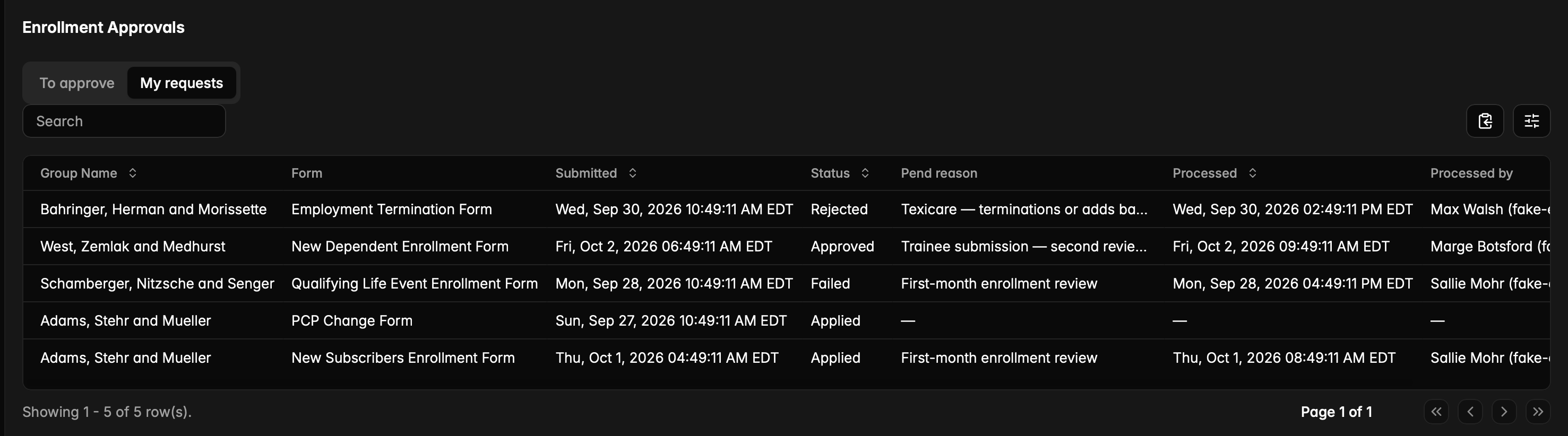
The My requests tab shows everything you have submitted, with its status (Pending Approval, Approved, Applied, Rejected, Failed), the reason it was held, and who processed it.
What the submitter sees
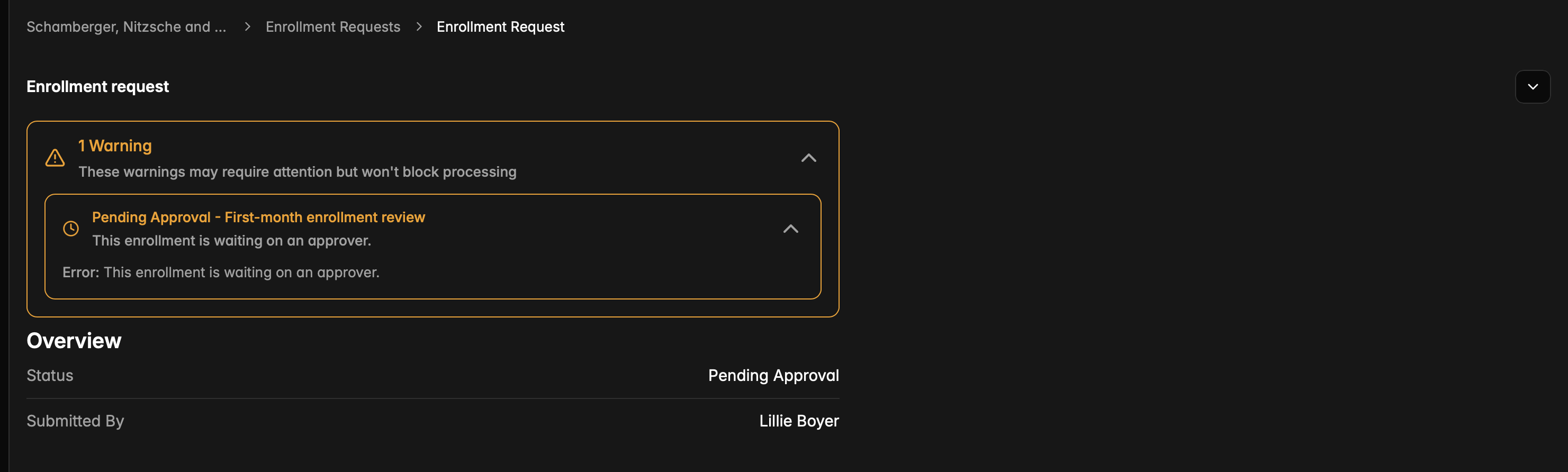
While a request is waiting, its page shows a Pending Approval notice with the reason. No action is needed — it will apply once an approver signs off.