

Once a swipe occurs, a claim is created in the system. Examples:
A recurring card for weekly physical therapy requires transaction receipts for each appointment
A custom card paying a bundled price for a service with separate swipes over the course of multiple days requires a receipt for each transaction
For details on receipt requirements go HERE
How the member receipt uploads works
SMS and email notifications for receipt upload can be toggled by care coordinators on during card creation. If no contact info is on file, notifications can’t be enabled.
Once the swipe occurs, the member receives direct links to the portal and can upload a photo from their phone or desktop. These notifications do not include provider or procedure info.
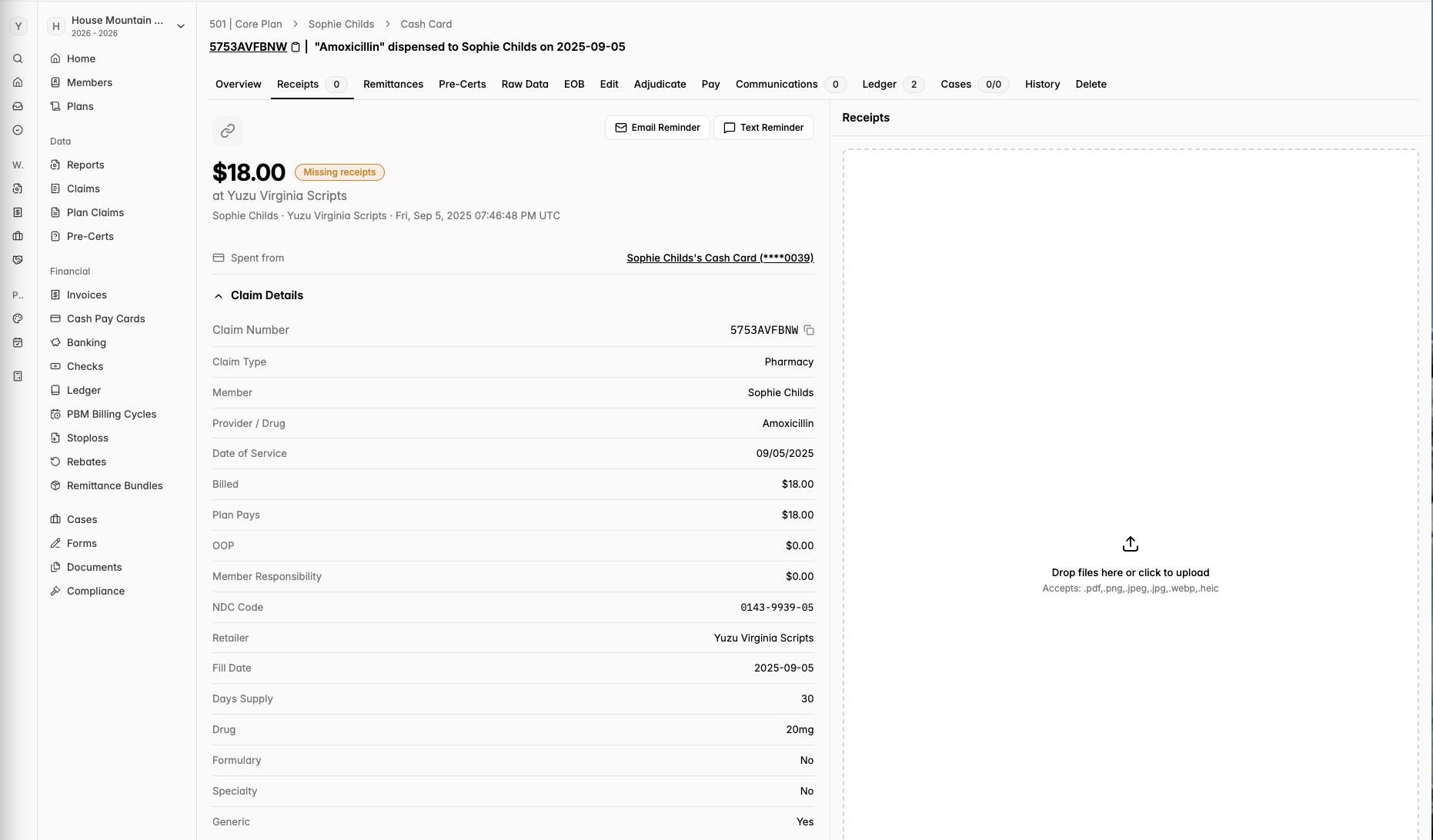
You can also send your own push reminders in the Card Receipt tab.

How to upload receipts as a care coordinator
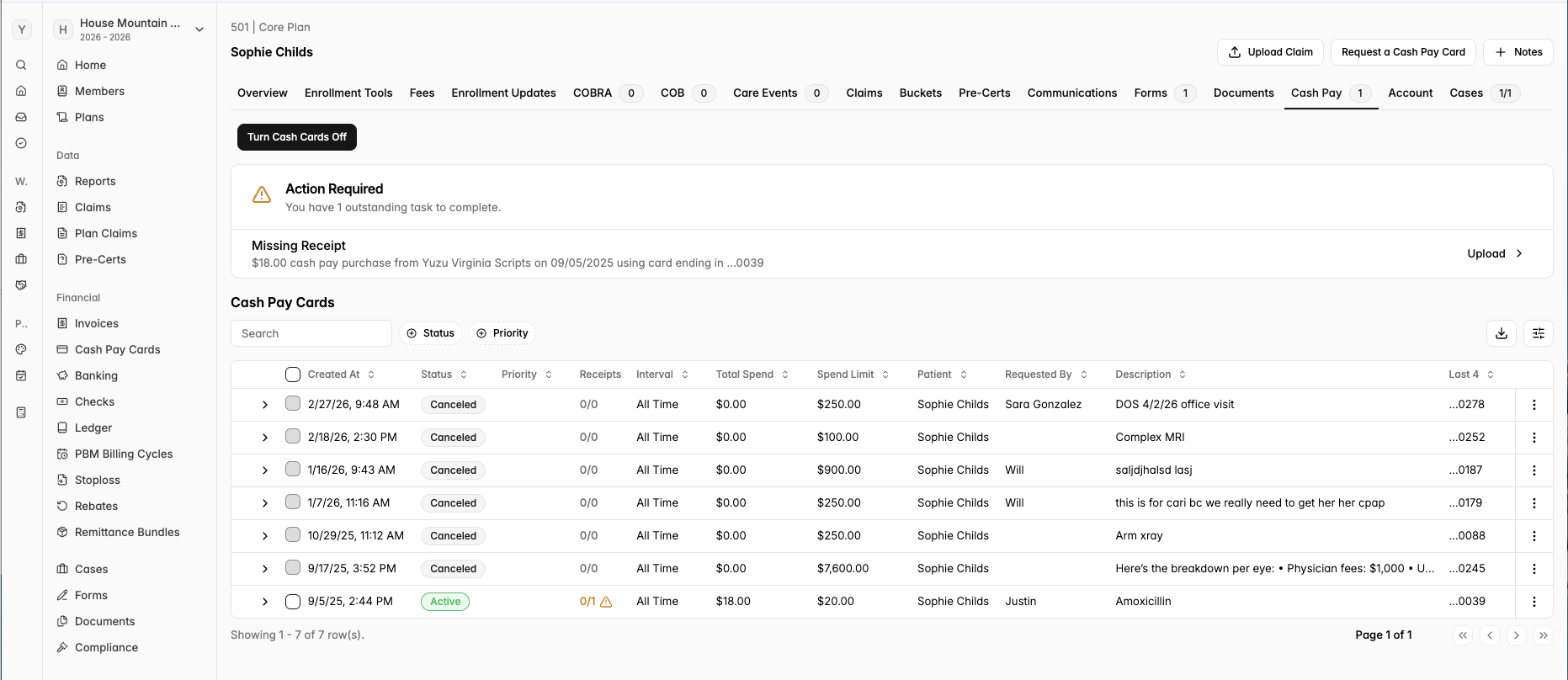
As a care coordinator, you can also upload receipts for a member. From the member’s overview page toggle to the Cash Pay tab, you will see an “Action Required” banner indicating the Missing Receipts. You will see an “Upload” button on the far right, select that and you will now be able to either click to upload or drag and drop the missing receipt. There is nothing else to do after this step. Receipt has been submitted!
How to follow up on member reimbursements
Locate the claim you wish to confirm whether reimbursement check has been cashed. Go to the Communications tab then click into the check column. You will see Check Status.
-Created: Has not been mailed yet, but has been queued to send.
-Mailed: Check has been mailed to member’s address on the Yuzu portal, but not received
-Delivered: Check has been delivered according to GPS tracking by USPS. This can be off by a day or two.
-Cashed: Check has been cashed.
Remind members to upload receipts
Reminders to members can be sent via SMS/email from the portal by going to the relevant claim > go ‘Receipts’ > click ‘Email Reminder’ or ‘Text Reminder’