
Overview
We understand how important it is for members to receive their ID cards promptly. That's why we've made it easy for all parties –– members, employers, brokers, and plan designers –– to track when a card was printed and when it's expected to arrive.
Frequently Asked Questions
How can I see when an ID card was printed or delivered?
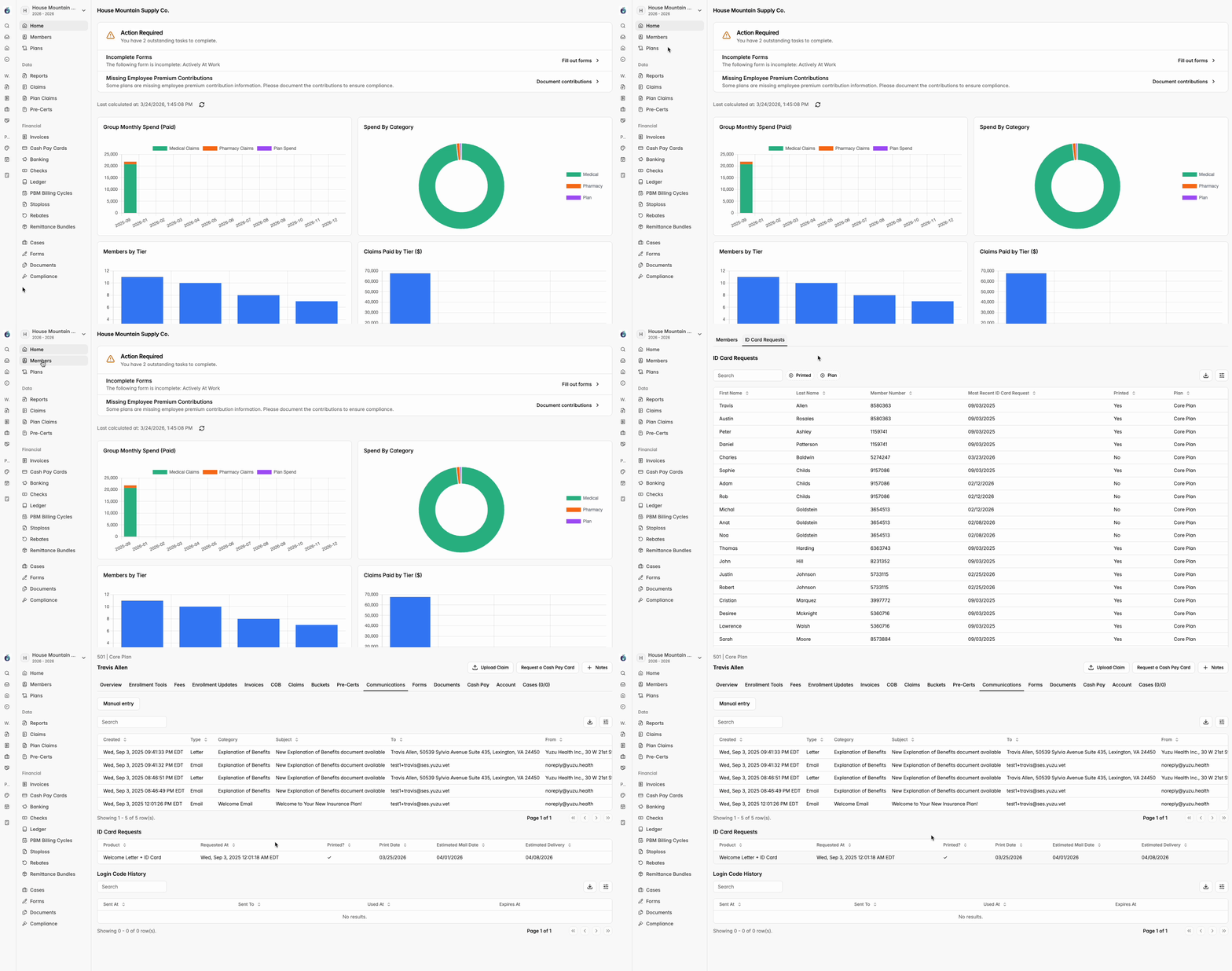
You can track the ID card status directly in the Communications Tab on the member's profile in the portal.

Once there, you’ll find a table that displays the following information for each card request:
Field | Description |
|---|---|
Product | The type of print request. Each type is described below. Welcome Letter + ID Card: Sent to new subscribers upon enrollment. Includes the welcome letter and the subscriber's ID card as well as ID cards for any enrolled dependents, if applicable Welcome ID Card: Sent to newly added dependents. This card is included alongside the primary subscriber's welcome letter Replacement ID Card: Generated when a replacement ID card is requested through the portal. Includes both a replacement letter and a new ID card |
Requested At | The exact date and time the ID card print request was submitted |
Printed | Indicates the current print status of the ID card — reflects whether the card has been printed yet |
Print Date | The date the ID card was successfully printed |
Estimated Mail Date | The date the ID card was physically mailed out to the member |
Estimated Delivery Date | The expected delivery date based on standard USPS delivery timelines from the mail date |
What if a replacement ID card has been requested – where can that be tracked?
Replacement card requests are tracked in the same place –– the Communications Tab on the member's profile. Any new or replacement card request will appear as a separate entry in the table, making it easy to distinguish from the original card request.

Can I view ID card statuses for the entire group at once?
Yes! You can view card requests at the group level by following these steps:
Navigate to the Members Tab in the portal
Click ID Card Requests in the top navigation bar
You will see a full list of card requests across all members in the group
This view provides the following information at a glance:
Field | Description | |
|---|---|---|
First Name / Last Name | The full name of the member associated with the ID card request | |
Member Number | The member’s ID number | |
Most Recent ID Card Request | The date the most recent ID card print request was submitted for this member | |
Printed | Indicates whether the member's most recent ID card has been successfully printed | |
Plan | The health plan the member is currently enrolled in |
Pro Tip: Each row is clickable –– selecting a record will display the exact print, mail, and estimated delivery dates for that specific member's card request.