

The Claims page
Click Claims in the left menu to see every claim we have received for your organization. Each row shows the claim number, patient, member ID, date of service, status, received / processed / paid dates, billed amount, plan paid, patient responsibility, and whether an EOB is available.
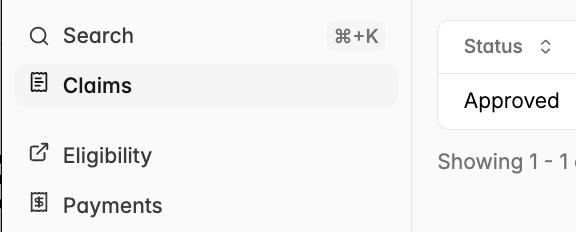
You can:
Search using the box above the table
Filter by status (Approved, Denied, Processing) or by date of service, received date, or processed date
Sort by clicking a column header
Export the list to a spreadsheet (CSV)
Download EOBs in bulk – tick the boxes next to several claims and click Download EOBs. We prepare a ZIP file and let you know when it is ready.
Claim details
Click any claim to open its details in a panel on the right. The web address updates, so you can bookmark or share the link with a teammate; use your browser's Back button or the X to close it.
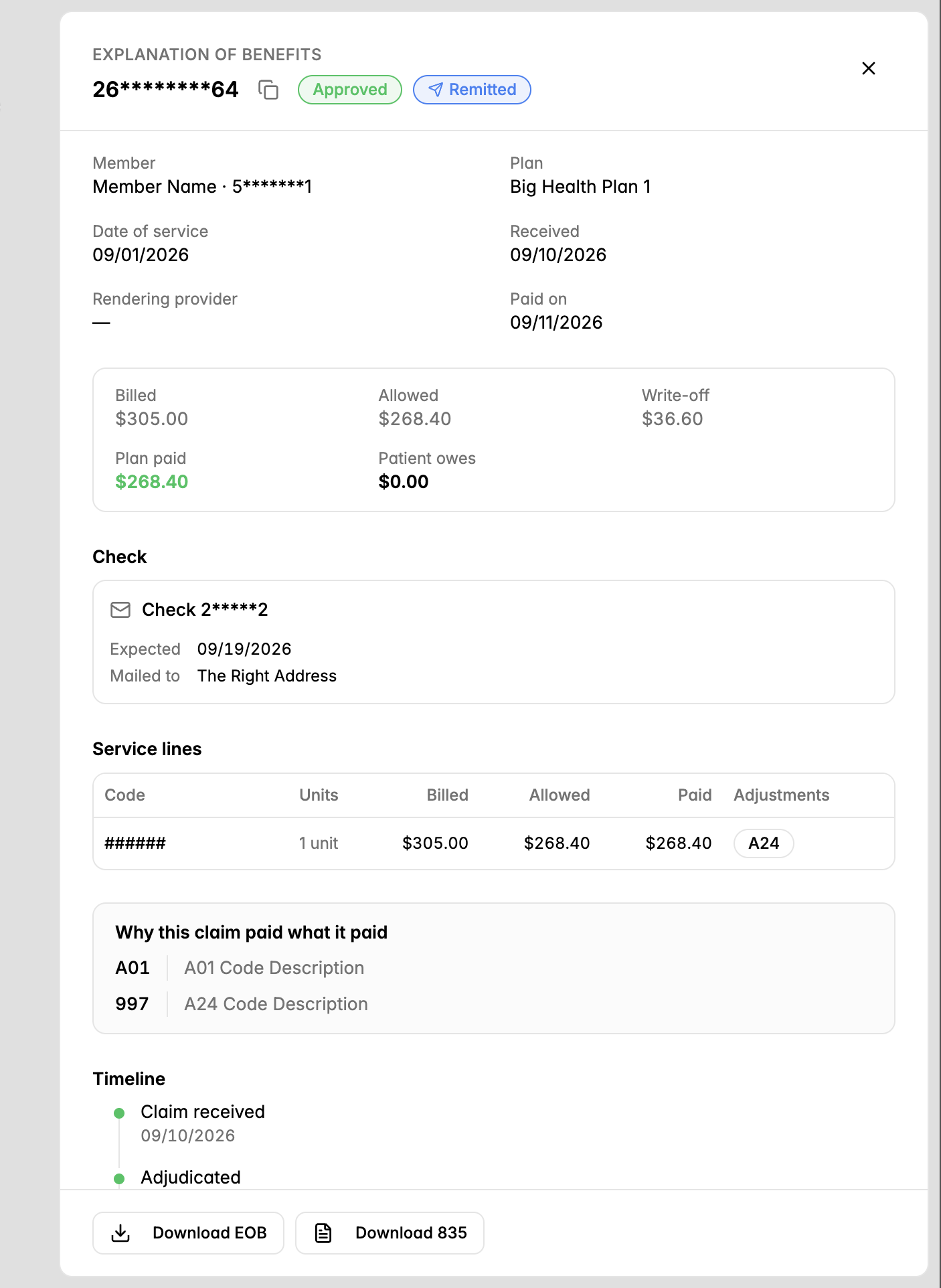
The panel shows:
Status – Approved, Denied, or Processing, plus a Remitted tag once payment has gone out
Member, plan, date of service, received date, rendering provider, and paid-on date
Amounts – Billed, Allowed, Write-off, Plan paid, and Patient owes
Payment details – ACH trace number and date posted, or check number with expected delivery date and mailing address
Service lines – each code with units, billed, allowed, paid, and any adjustment codes
Why this claim paid what it paid – the reason codes and explanations for any reductions or denials
Timeline – Claim received → Adjudicated → Payment issued (or Denied) → EOB available
At the bottom of the panel:
Download EOB – available once the claim has finished processing
Download 835 – available when an electronic remittance file exists for this claim