

Real-Time Reports
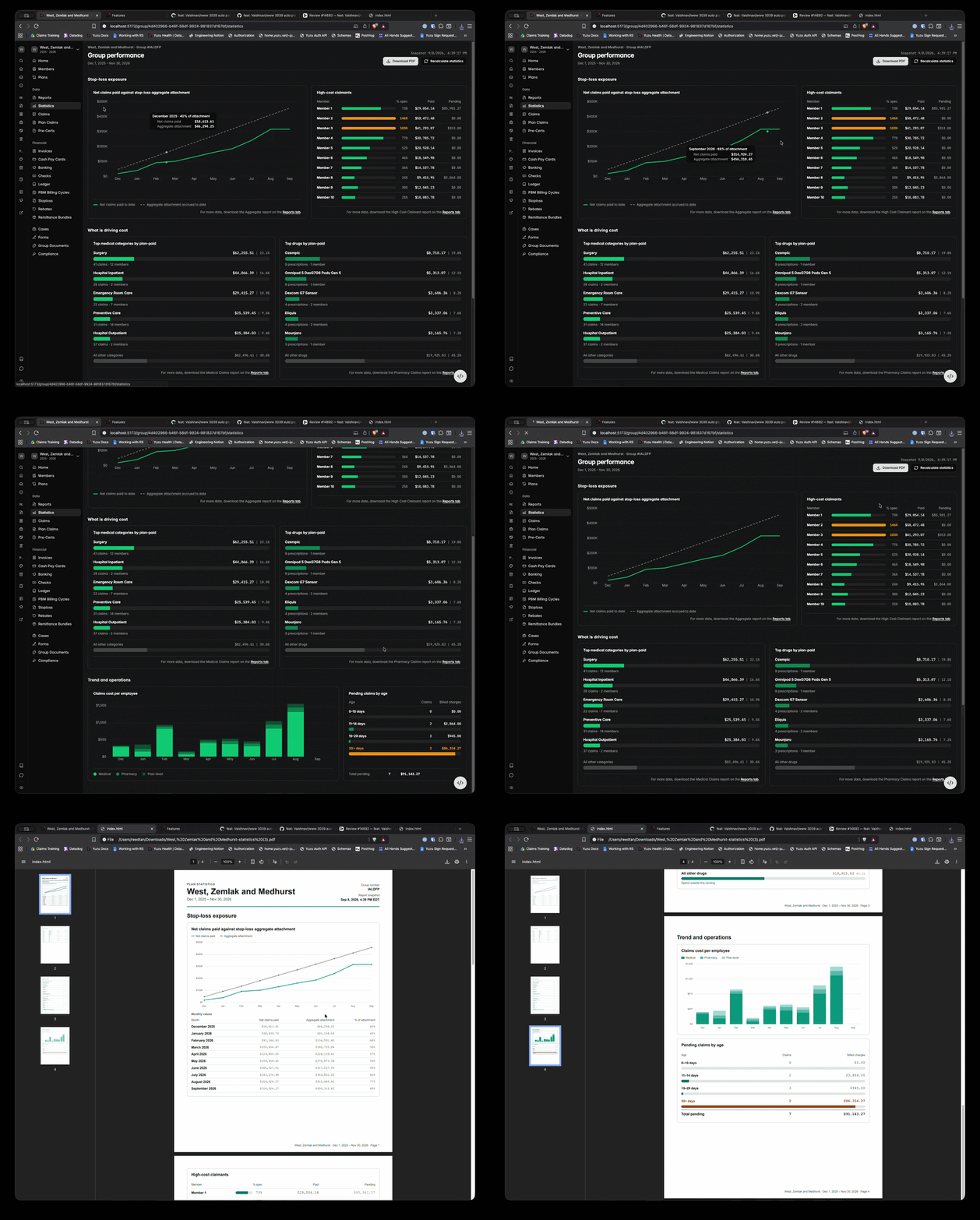
The Statistics tab in your group portal shows a Group Performance dashboard: a real-time, at-a-glance view of how your plan is performing. You can also download it as a PDF report to share.
What's on it:
Stop-loss exposure: year-to-date net claims paid as a percentage of your aggregate attachment point, plus your top high-cost claimants. The PDF report includes the month-by-month breakdown.
What is driving cost: top medical categories and top drugs by amount the plan paid.
Trend and operations: claims cost per employee by month, and how long pending claims have been open.
Good to know:
Charts appear only when your plan has the underlying data. For example, plans without their own aggregate stop-loss coverage do not see the aggregate chart, and plans with no pharmacy claims do not see Top drugs.
To protect member privacy, individual member spend, spend by benefit category, and spend by drug are shown only for groups with 20 or more enrolled employees.
Statistics are recalculated automatically each day. Use "Recalculate statistics" to refresh them on demand.
Detailed Downloadable Reports
For a more detailed look into plan performance, check out your Reports Tab. This tab contains downloadable reports (which download as either CSV or Excel files) for visibility into exact data across your group.
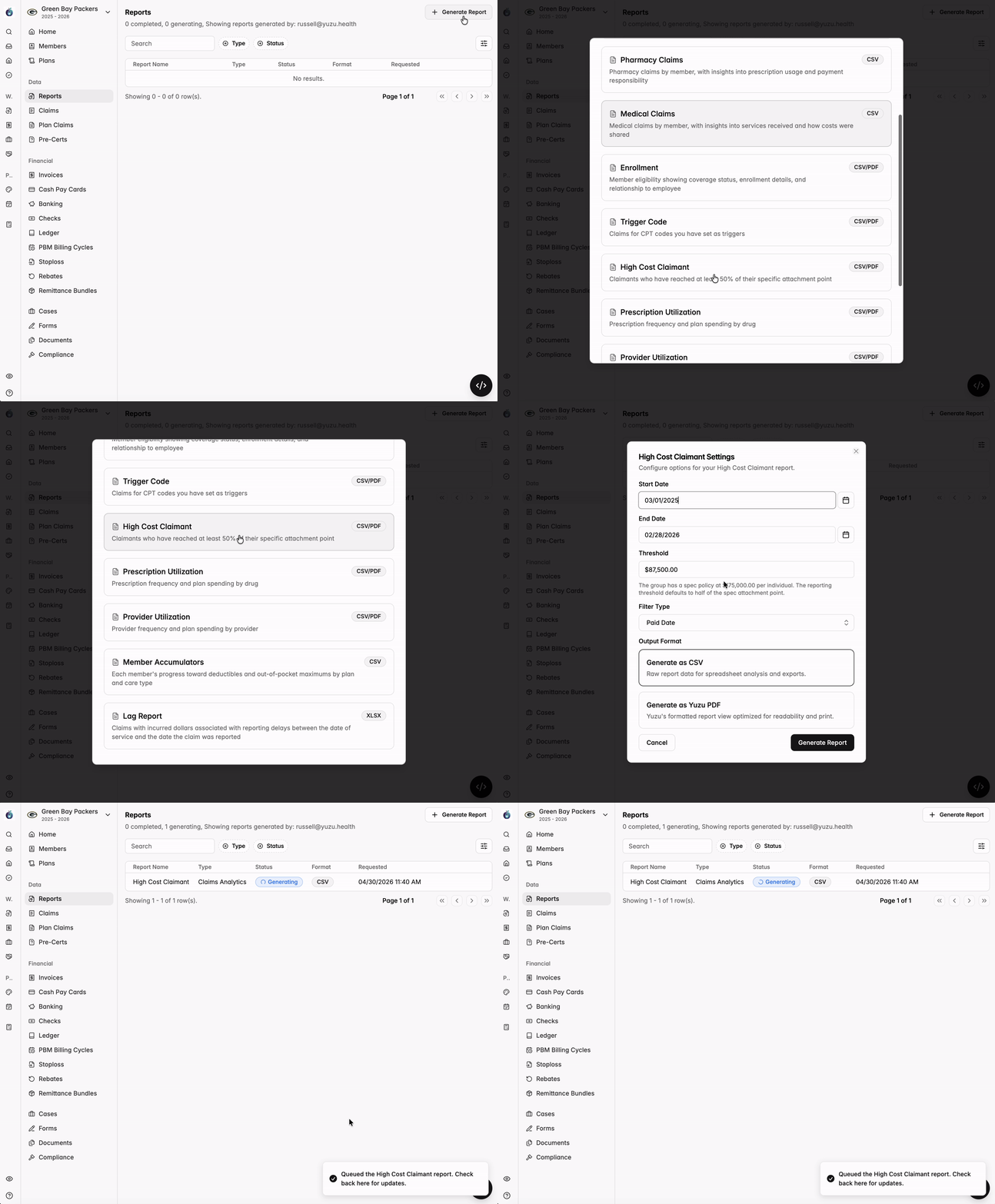
Reports can be generated by navigating to the ‘Reports’ tab and clicking ‘Generate Report’ on the top right corner. This will pull up a list of all available reports, the form of file it will be downloadable as, and a short blurb on what this report includes.
How do I download a report?
Reports can be downloaded by navigating to the ‘Reports’ tab and clicking ‘Generate Report’ on the top right corner. This will pull up a list of all available reports, the form of file it will be downloadable as, and a short blurb on what this report includes.
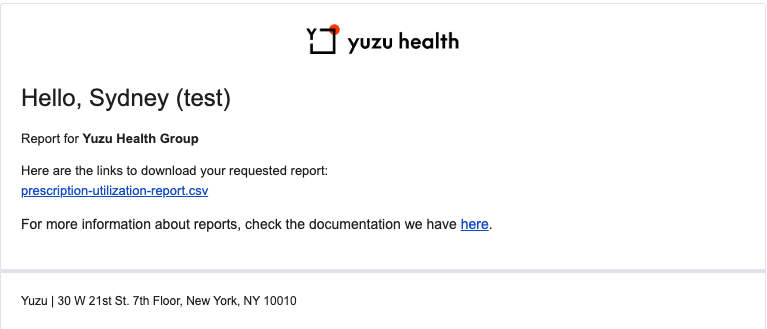
Depending on the size of your report it might take a few minutes to download, feel free to leave the page and you’ll receive an email alert when your report is ready to view.
How do I view a report?
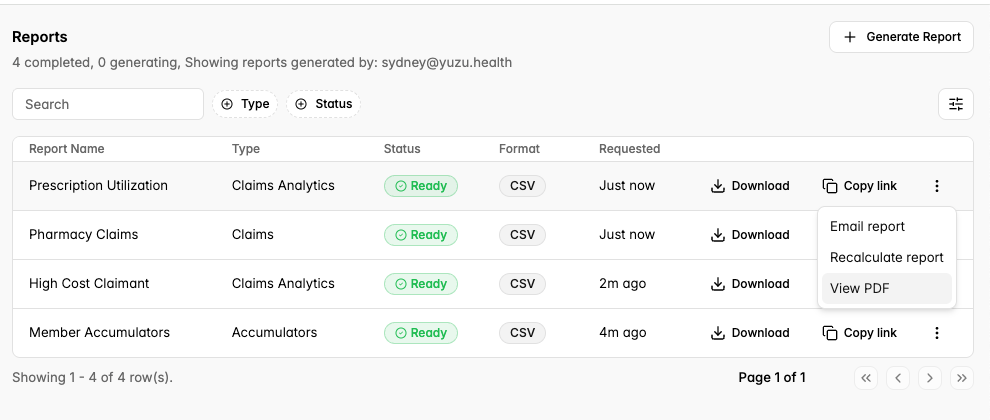
Once a report has been generated it will live in your reports tab under each specific Employer group. You can view a sample of, download, or copy a sharable link to your requested reports from this table.
What reports can I see?
Anyone with access to view reporting can see the following reports:
Aggregate — Aggregate-level summary of claims, thresholds, and loss ratios by month and coverage tier
Aggregate (by Location) — Aggregate report by location, showing claims, thresholds, and loss ratios by month and coverage tier
Pharmacy Claims — Pharmacy claims by member, with insights into prescription usage and payment responsibility
Medical Claims — Medical claims by member, with insights into services received and how costs were shared
Enrollment — Member eligibility showing coverage status, enrollment details, and relationship to employee
Member Accumulators — Each member's progress toward deductibles and out-of-pocket maximums by plan and care type
Lag Report — Claims with incurred dollars associated with reporting delays between the date of service and the date the claim was reported
**Importantly, employers will not have access to PHI unless they are labeled “Privacy Officer” (info below) — any reports downloaded by non-privacy officers will have redacted PHI.
Only privacy officers can see reports with PHI (personal health information), which gives them access to the following additional reports:
Trigger Code — Claims for CPT codes you have set as triggers
High Cost Claimant — Claimants who have reached at least 50% of their specific attachment point
Prescription Utilization — Prescription frequency and plan spending by drug
Provider Utilization — Provider frequency and plan spending by provider